 English
 বাংলা
বাংলা Čeština
 Dansk
Dansk Deutsch
 Español
 Français
 हिन्दी
 Magyar
 Bahasa Indonesia
 Italiano
 日本語
日本語 한국어
한국어 Norsk bokmål
 Nederlands
 Polski
 Português
 Română
 Русский
 Slovenčina
 Slovenščina
 Svenska
 Türkçe
 Tiếng Việt
 中文
中文The Meneaufile manual
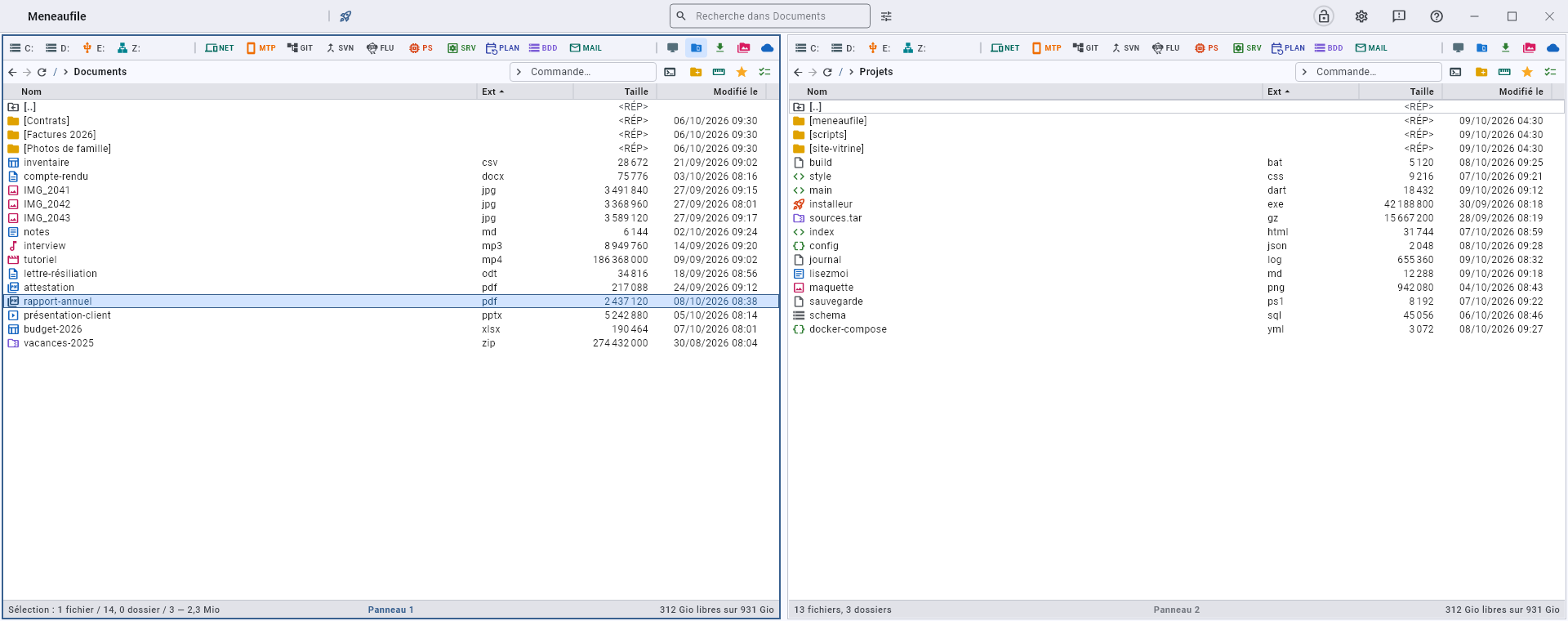
Meneaufile is a two-panel file manager: you work from one folder to another, both in front of you, with the keyboard as much as with the mouse.
What it brings
It comes down to one sentence: whatever is not a file is browsed like a folder. An FTP server, an archive, a password vault, a database, the list of processes, the history of a Git repository: all of it opens in a panel, with the same keys, the same selection, the same breadcrumb. There is nothing new to learn for each source.
What it is not: an RDP client, an SSH client, a browser, an editor. Those tools belong to the system; Meneaufile keeps them close at hand, tidied away, and knows which one answers before you click.
Everyday actions
| Key | What it does |
|---|---|
| F3 | View — text, images, PDF, Office, video, sound |
| F6 | Copy to the other panel |
| F8 | Compare two files line by line |
| F9 | Compress the selection |
| F10 | Back up — make one folder a mirror of the other |
| F11 | Synchronise — bring the two in line with each other |
Where to start
- Panels — moving around, the layouts, the breadcrumb.
- Copy, move, delete — and what can be undone.
- The queue — every long action takes its turn there, and can be followed there.
- Shortcuts — the whole list.
- The modules — the twelve sources that open like folders.
The platforms
Windows, Linux and Android. What makes no sense on a platform is not shown there: the SAF module exists only on Android, network neighbourhood only on Windows, services only where the platform has them.
Panels
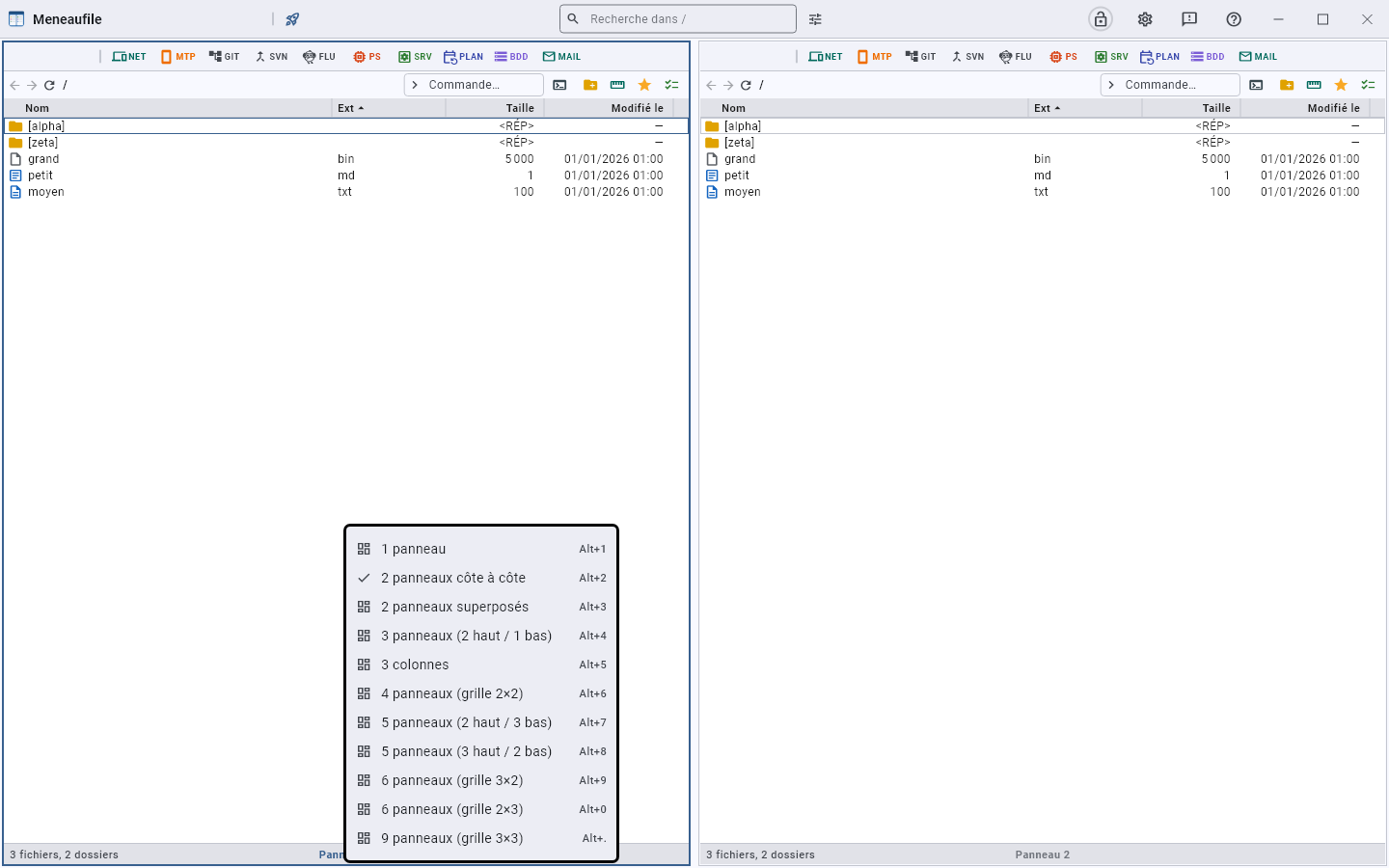
Eleven layouts, from one to nine panels: a single view, two side by side or one above the other, three, four, five, six, nine.
The layouts
Their keys follow the order of the list — Alt+1 to Alt+9, then Alt+0 and Alt+. — and not the number of panels: the fourth layout has three.
Each panel carries its number at the bottom of its list: that is where you think of the layout, and a right-click on it shows them all, with their key.
Between two panels, the mullion: the thin bar that separates them, like the one dividing a window — and the one Meneaufile is named after. Drag it to set their widths; each layout remembers its own, and right-clicking a mullion restores equal shares.
Tab moves to the next panel. The ACTIVE panel carries a thin outline: it is the one the keys target, and the one that serves as the source for a copy. Ctrl+U swaps the folders of two panels.
Moving around
- Enter or a double-click enters a folder, opens a file; the bold in the context menu always says what a double-click will do.
- Backspace goes up one level; Alt+← and Alt+→ retrace the path taken.
- The breadcrumb, at the top, leads to any level with a click — and its right-click opens the same menu as the list.
- Typing letters jumps to the first row that starts with them.
- Right-clicking one of the two arrows opens the visited folders — the panel’s own, not those next door. That list survives closing the app, whereas the arrows themselves start from zero at every launch: it is on reopening that you look for where you were working. The greyed-out arrows still respond.
- F5 rereads the folder. On a list of machines, it probes again: what you come to look for is who answers NOW.
Each panel remembers the last folder visited PER DRIVE: clicking a disk’s button returns straight there, and its root stays one right-click away.
The console
To the right of the command field, the console window opens a terminal in the panel’s folder. In an SFTP server — or an SSH entry being browsed — it opens an SSH session on the server, placed in the folder you are looking at.
Its right-click shows the terminals installed on the computer: cmd, PowerShell, Windows Terminal, Git Bash or WSL on Windows, those of the desktop environment on Linux. The one you choose opens at once, and it is the one the click will open from then on.
What the bottom of the list says
The row count while nothing is chosen, the size of the selection as soon as there is one, and the free space of the displayed volume. During a search or a measurement, that is where the traversal says how far it has got.
Cursor and selection
The cursor is the outlined box; the selection is what is tinted. The two are distinct: you move the cursor around without losing anything that is chosen.
Choose
| Key | Effect |
|---|---|
| Ctrl+A | Select all |
| Ctrl+Shift+A | Deselect all |
| * | Invert selection |
| + | Add everything that has the same extension |
| Shift+F2 | What the two panels have in common |
| Ctrl+Shift+C | Copy path |
| Ctrl+Shift+N | Copy the name |
And the lasso with the mouse, with Ctrl or Shift on click, as everywhere.
Measure
Space measures a folder — its size is written in its column — without selecting it. It is the action you repeat while going down a tree to find out what weighs the most; disk usage does it in one go, and as a picture.
What is hidden
Ctrl+H shows or hides hidden files. The setting is per panel, and is remembered from one session to the next.
Copy, move, delete
Actions go from the active panel TO the other one, as in every two-panel file manager. When more than two panels are open, Meneaufile asks which one is the target.
Copy and move
F6 copies, Ctrl+F6 moves. A summary says what goes where before starting, and a progress dialog follows the work — you can stop it. A second action in the meantime is not refused: it joins the queue and goes in its turn.
Facing a file that is already there, the question is asked once and the answer can apply to the rest: replace, replace only if the target is older, skip, or rename automatically. “Older” is the usual way to refresh a folder without overwriting fresher work; with no date on either side, the target is kept, because that is the choice that loses nothing.
Eject the stick at the end
When the destination is a removable medium — a USB stick, a card —, the summary carries a checkbox: eject the medium once the copy is in place. It appears only there, because the question arises only there, and its state is remembered from one copy to the next.
A finished copy is not a copy in place: the system keeps pages waiting, and pulling the stick at that moment loses what was still on its way. Ejecting flushes them and unmounts the volume — it is what tells you that you can unplug. A file that is still open makes it fail, and Meneaufile says so rather than letting you believe otherwise. Where the system allows it: Android does not let an app unmount a volume, and the checkbox does not appear there.
Rename
F2 renames on the row — the name reads among its neighbours, which is exactly what you look at to choose it.
Ctrl+M renames a whole batch with a single mask, with a preview of what each name will become before you confirm.
Create
Insert creates a file, Shift+Insert a folder. In a module, the same key creates what the module contains: a connection, a machine, a password entry.
Delete
Del sends to the recycle bin; Shift+Del deletes for good, and says so beforehand. On a server or in a database, there is no recycle bin: deletion is always permanent, and the dialog reminds you.
Undo
Ctrl+Z undoes a rename, or a batch sent to the recycle bin. A permanent deletion cannot be undone — which is why it asks for confirmation.
When permissions are missing
A permissions refusal is not the end. When a deletion or a rename fails for lack of permissions, Meneaufile offers to try again with administrator rights. The system then shows its consent window, which you are free to refuse — and an elevated deletion does not go through the recycle bin. Both are said beforehand.
The log
Whatever touched files is remembered: what went where, under what name, and what failed. You read it without leaving the app.
The queue
Every long action — copy, move, delete, compress, extract, synchronise, export a database — goes into a queue: only one runs at a time, the following ones wait their turn. A setting makes them all start together. You keep working in the meantime.
One task at a time, or all together
By default, the queue plays the tasks in order of arrival, one at a time. Two tasks sharing the same medium each go slower than a single one, and the report reads in order: you know what was done, and when.
Everything at once is requested in the settings, in the “Tools” section. Each task then starts as soon as it arrives, without waiting for the others. It is what you want when they compete for nothing — an upload to a server while you decompress, two transfers on two different media. The setting applies to what follows: changing it while a task is running stops nothing.
Launching an action while a task is running is never refused: a thumbnail flies to the queue button, at the top of the window. The action has been taken, it waits its turn, and that is where you follow it.
The queue button
In the title bar, it exists only while there is work; with nothing left to read, it disappears. It carries the progress of the running task — a ring, which spins idly as long as nothing has moved yet — and, as a badge, the number of tasks remaining. A click opens the list.

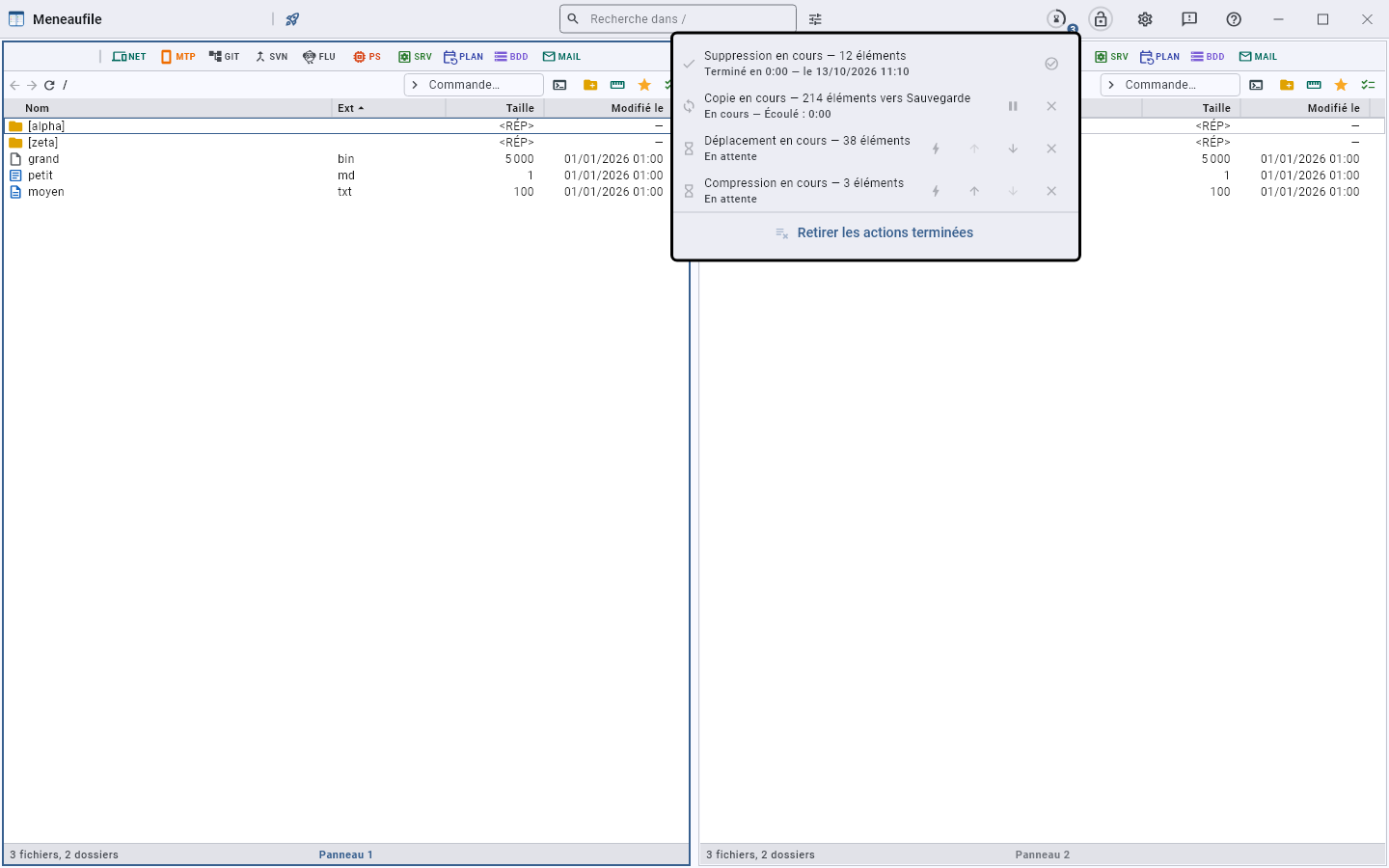
One row per action: what it does, where it stands — “Running” and the elapsed time, “Waiting”, “Paused”, “Finished in 12 s — 11/09 at 14:02” — and its controls, which act without closing the list:
- Pause and Resume, on the running task.
- Cancel: a task that was waiting leaves without having started. If the work does not give control back — a question left unanswered, a blocked call —, a second request wins out and the row closes.
- Move up or move down in the queue, for those that are waiting: the running task has already written, moving it back would undo nothing.
- Force: start now, without waiting for its turn. A small task behind an hour-long transfer has no reason to wait; it leaves the queue and runs alongside, and the order of the others does not change.
- Remove from the list, one by one, or Remove finished actions all at once. A finished task does not disappear by itself: its duration and its outcome are exactly what you come to read when you return to the queue.
The progress dialog
The first task opens its dialog: the current file, the progress, the elapsed time, the throughput, what remains. Pause suspends it, Background tucks it into the queue button — the thumbnail flies there —, Cancel stops it. A task that has waited its turn does not pop up its dialog when it arrives: you were working elsewhere in the meantime. The queue brings it back by itself when the task has a question to ask — a file that already exists is not replaced without an answer.
The same request twice
A deletion sent to the queue without showing anything, and the key pressed three times: the second request does not make a second task. Meneaufile says so — “Task already waiting” — rather than doing everything twice, especially for what destroys.
What does not take a turn
A folder comparison only reads: it does not take the turn of a copy and runs alongside. Sent to the background, it still appears in the list — without that, its result would pop up minutes later, and you would think something had hung.
Closing while a task is running
The window asks first: “Tasks are still running”. Closing interrupts them, and what they were writing stays half-written. The queue does not resume at the next startup, and that is intended: replaying a copy interrupted in the middle of a file requires knowing where it stood — which the disk does not say —, and replaying a deletion would destroy what you may just have restored. Each task does, however, leave its line in the log, with its outcome: the next day is when you ask what happened.
Columns
You drag the edge of a header to change a width, and arrange the columns in “Choose the columns”. A click on the header sorts; a second one reverses.
What sorting does with folders
Folders are grouped at the top, and stay among themselves in ascending alphabetical order — whatever the column and whichever the direction. Their size is unknown until it has been calculated and their date says little, whereas the name is what you look them up by.
The “Folders follow the sort” setting (Settings → File listing) makes them obey the column like files: that is what you want after clicking Date precisely to see your recent folders first.
An entry is not a folder, even if it opens like one. In the lists of NET, BDD and MAIL, a connection is browsed like a folder — its path is the very real one of its starting folder on the server —, but it is sorted with the files: it is a target, not a filing place. Only the filing folders, the ones you made to store your entries, stay at the top.
Their order
Right-clicking a header opens Choose the columns: each line is ticked to appear or disappear, and dragged to change its rank. The whole line can be grabbed — there is no handle to aim for.
The Name column stays first: it carries the icon and the selection.
Except in a table: there, the columns come from the query, and their order is that of the SELECT. Arranging them by hand would make a setting that the next query would erase. The fixed lists of a database — the connections, the tables — are arranged like everywhere else.
A setting that can apply to this folder only
A folder of photos does not need the same columns as a folder of code. The dialog asks when you close the setting: for THIS folder only, for all lists that have the same columns, or for all folders.
Each source has its own
A server shows the address and the protocol, a machine its state, a table its fields, a process its memory, a service its startup type. The source declares them, and the list bends to them without knowing anything about them.
In a database, F12 switches between a table’s data and its structure: two sets of columns for the same row of the list.
Text size
The List text size setting changes the density: rows and icons follow. It is the setting to touch on a very high-resolution screen, before any other.
The context menu
A single menu, wherever you click: on a row, on the breadcrumb, on [..], in the blank of the list. Two menus that look alike without being identical force you to read to know which one you have; this one is memorised.
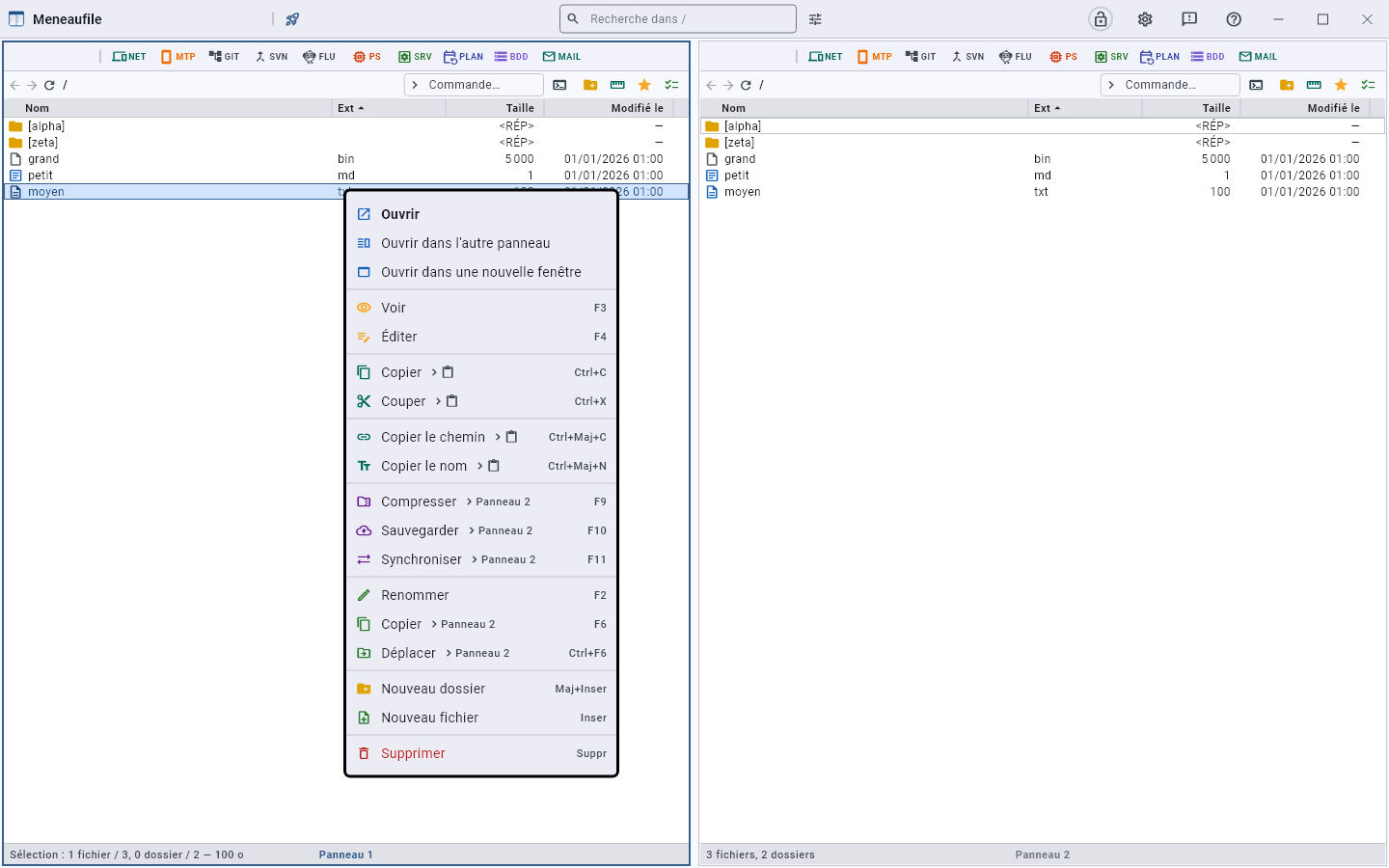
Three “Copy” entries, and what tells them apart
The word serves three actions that do not send to the same place. The menu therefore adds the destination after a “›”, rather than lengthening the labels:
| Entry | Where it goes | Key |
|---|---|---|
| Copy › Panel 2 | The files, in the other view | F5 |
| Copy › clipboard | The files, to paste elsewhere — including outside Meneaufile | Ctrl+C |
| Copy path › clipboard | Text: the path | Ctrl+Shift+C |
The destination view shows on every action that writes elsewhere — Copy, Move, Compress, Back up, Synchronise: with two views, “› Panel 2”; with three or four, “› Panels”, because the question comes when you act, and naming a view in advance would announce what is not yet known.
“Cut” (Ctrl+X) goes with copy, and “Paste” (Ctrl+V) appears only if the clipboard holds files — an entry that can only answer “The clipboard holds no file” teaches you to stop clicking.
A separator sets the two apart: above, the files themselves, bytes that you paste back into a folder; below, their text, characters that you paste back into a sentence. The “›” says where each one sends, the separator says these are two different things.
Paste fills the folder you pointed at, without entering it: right-click a folder, “Paste”, and it goes inside. On a file, there is nothing to fill — the displayed folder receives, like Ctrl+V.
What is not there
What does not apply: a database row cannot be compressed, a process cannot be renamed. An absent entry says the same thing as a refusal, but sooner.
The colours
| Tint | Family | For example |
|---|---|---|
| Blue | What opens | Open, Open in its location |
| Amber | What reads | View, Compare, Properties |
| Green | What creates or moves | Copy, New folder |
| Red | What destroys | Delete, Empty |
With no label to reread, it is the colour that lets you aim right the first time.
The variants
- Ctrl+right-click opens the Windows menu, the Explorer one, without going through ours.
- Holding Shift makes the technical entries appear — “Run as administrator” —, as in Explorer.
The button bar
Above each list, three groups of buttons, from left to right: the drives, the modules, the quick access.
The drives
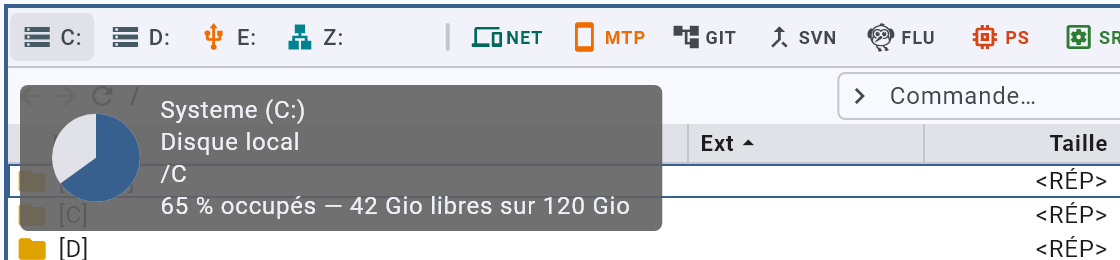
Their button carries a pie chart of what is used; hovering gives the figures, and reads them again at that moment. Right-click leads to the root, to the last folder visited on that drive, to the other panel — and carries “Properties”, the system’s own.
A drive that no longer answers turns red: that is a state to fix, not a kind of drive.
The modules
One button per source, with its abbreviation and its tint. See The modules.
Quick access
The personal folders — desktop, documents, pictures, downloads — and the favourites you have made. Each keeps its tint, the same as in the list.
The handles
Between the groups, handles: drag them to reveal buttons one by one, push them to fold buttons behind their icon. What is folded stays reachable — the group’s icon opens a drawer that lists them, with “Edit…” at the end to set the order and what is shown.
The title bar
- The rocket carries the launch shortcuts: the first ones have their button, the following ones wait behind it. Ctrl+1 to Ctrl+9 launch them. Drop a program on it to add one.
- The search field — see Search.
- The queue is only there when a task is running or waiting: a progress ring, the number of tasks in a badge, and the task list on click — see The queue.
- The padlock says whether the password vault is open, and changes it with a click — closed, it asks for the password; open, it locks again. Its ring fills up towards automatic locking, and hovering tells you the time left.
- The gear opens the settings.
- The speech bubble opens your mail client on a message of feedback to us, with the version and platform already written in.
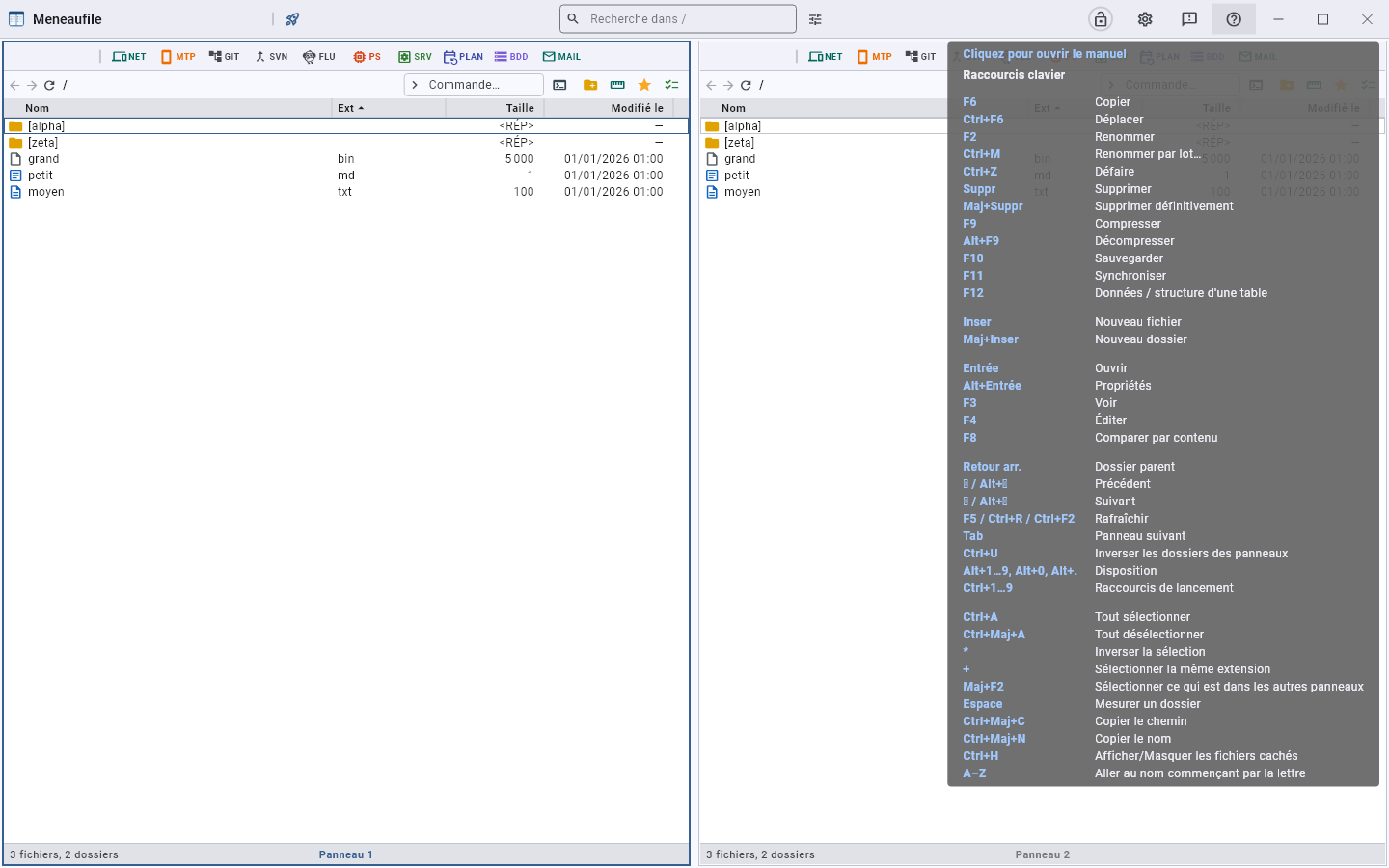
- The question mark shows the shortcuts on hover, and opens this manual on click.
Search
The title bar field searches the displayed folder and its subfolders. The button to its right opens the options — that is where the search becomes precise.
Two fields, a single text
The search is written in two places, and it is the same text: the one in the title bar, and a bar at the bottom of the panel’s list, just above its number. What you type in one appears in the other, cursor included — it is not a copy, it is the same field shown twice.
Why the one at the bottom. The title bar field is single and serves the active panel: in front of a list of results, you read what you are searching for at the other end of the window, and nothing says which of the two panels carries it. The bottom bar is in the panel that is searching.
Ctrl+F opens it and puts the cursor in it, wherever you are — including from another field, which is precisely where you come from: you type a path, then search inside it. It also opens by itself as soon as a search is running, and its cross leaves it in one gesture — that is the mouse way out, whereas Esc requires the keyboard to be in the field.
The search options
| Option | What it changes |
|---|---|
| Content | Each candidate file is read, not just its name: the search is slower. |
| Also read the text inside PDFs | Each candidate PDF is opened: slower still. |
| Regular expression | The name searched for becomes a pattern. |
| Search in file names / in folder names | Two separate boxes: you can target only folders, or only files. |
| Search inside compressed files | Archives are opened in passing. |
| Programs only | The execute bit on Linux, the extension on Windows. |
| Depth | All subfolders, or a number of levels. |
| Modified between | Two dates, either one optional. |
| Size | A bound, in whatever unit you like. |
| The X files that are the… | Largest, smallest, newest or oldest: how many to keep, by one ranking at a time. The searched name then becomes optional: it’s the way to find what fills a disk, or what changed yesterday. |
Each option in use appears as a badge under the field; you remove it with a click on its cross. “Clear all” removes them all.
During the search
The bottom of the list names the folder being traversed — a whole disk takes tens of seconds — and what has already been found is displayed as it goes.
Stop, clear, go back
- Stop the search halts the traversal and keeps what was found: the list stays there, you work in it.
- The field’s cross clears the search: the panel goes back to the folder it was showing.
- Esc leaves the field; the same cross, or “Reset the filter”, gives back the whole list.
- The recent searches are offered when you return to the field.
- The Content field keeps its last ten texts, under its history button: an error message is searched from one folder to the next without retyping it.
What it does not enter
Traversing sometimes costs more than what you are looking for. A NET entry would open a connection, a MAIL account would fetch five hundred summaries, a BDD query would run: the search stops in front of them, and you enter to search inside.
Nothing is hidden for all that: those rows are still compared to the query, and so are found by their name as well as by what their columns show. Ticking them forces the traversal — you then pay for the connection of only the entries you have designated.
A result opens in its place
“Open in its location” leads to the folder that holds the result and points to the row. It is the action that turns a search into a starting point.
Shortcuts
The same as the question mark’s tooltip, and in the words of the interface: they are the labels of the actions themselves.
Act
| F6 | Copy |
| Ctrl+F6 | Move |
| F2 | Rename |
| Ctrl+M | Batch rename… |
| Ctrl+Z | Undo |
| Del | Delete |
| Shift+Del | Delete permanently |
| F9 | Compress |
| Alt+F9 | Decompress |
| F10 | Back up |
| F11 | Synchronise |
| F12 | Table data / structure |
Create
| Insert | New file |
| Shift+Insert | New folder |
Open
| Enter | Open |
| Alt+Enter | Properties |
| F3 | View — or the entry, on a list that shows none |
| F4 | Edit |
| F8 | Compare by content |
Navigate
| Backspace | Parent folder |
| ← / Alt+← | Back |
| → / Alt+→ | Forward |
| F5 / Ctrl+R / Ctrl+F2 | Refresh |
| Ctrl+F | Search in the panel: opens its search bar and puts the cursor in it |
| Tab | Next panel |
| Ctrl+U | Swap the panels’ folders |
| Alt+1…9, Alt+0, Alt+. | Layout |
| Ctrl+1…9 | Launch shortcuts |
Select
| Ctrl+A | Select all |
| Ctrl+Shift+A | Deselect all |
| * | Invert selection |
| + | Select same extension |
| Shift+F2 | Select what the other panels show |
| Space | Measure a folder |
| Ctrl+Shift+C | Copy path |
| Ctrl+Shift+N | Copy the name |
| Ctrl+H | Show/Hide hidden files |
| A–Z | Jump to the name starting with the letter |
View and edit
F3 opens the viewer, F4 the system editor.
What it reads
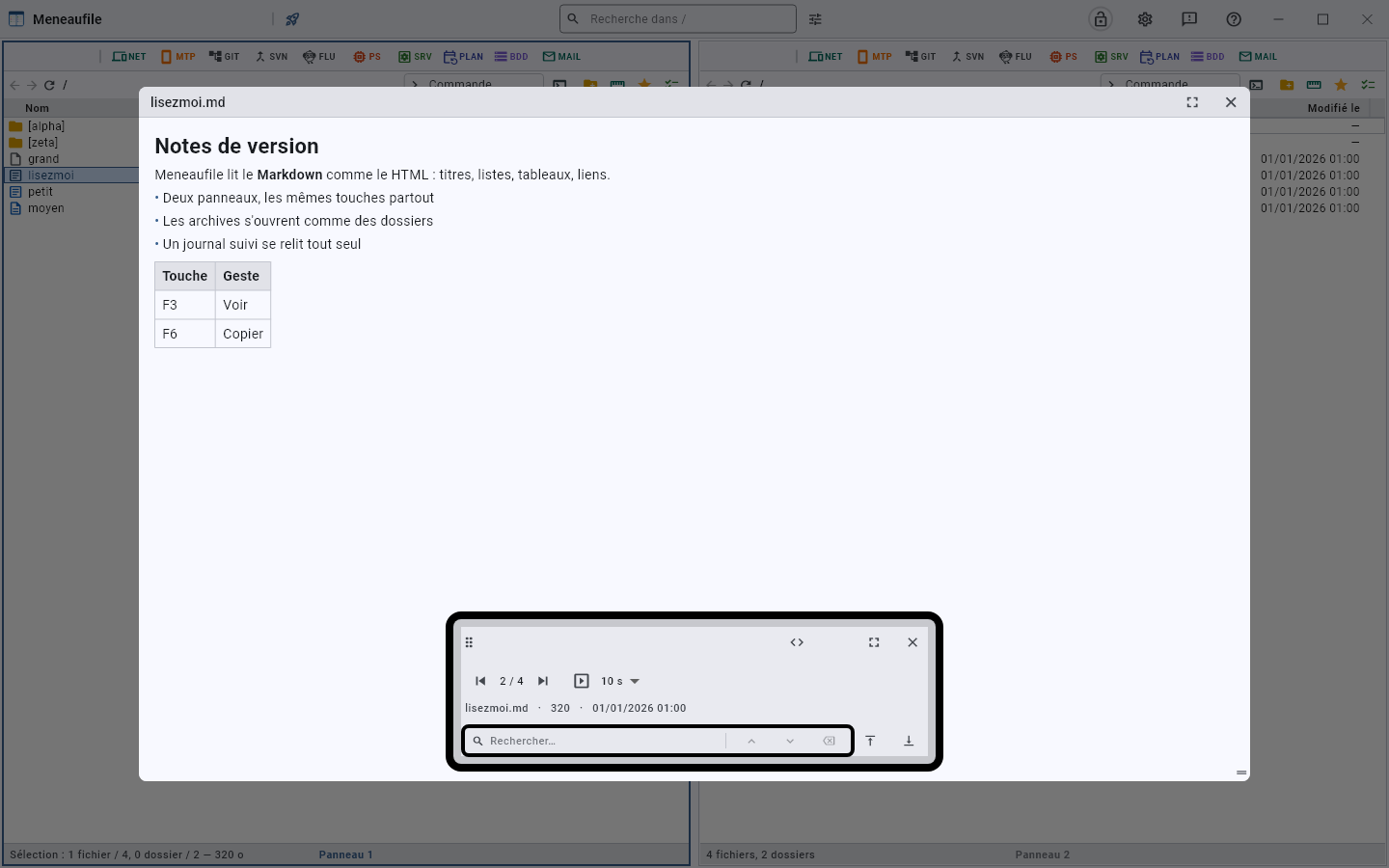
Text, Markdown, HTML, CSV tables, images, PDFs, Office documents, video and sound — and everything else in hexadecimal. The arrows move to the next file without closing it: that is what makes the difference between looking at a file and browsing a folder.
The built-in renderer is not an engine: it reads headings, lists, tables, links; it knows neither CSS, nor script, nor images. For a page that depends on them, the “browser” button hands it over to the system’s — already installed, and telling the truth. An Office document goes the same way to its program when it is installed.
JSON and XML are reformatted when the file is read in full: one tag or value per line, four spaces per level. A web.config or an API response often fits on a single line, which you used to follow with your finger. What cannot be parsed — a file truncated by the reading window, a .json that is not one — stays as it is: better the source than nothing. The file itself is never rewritten: it is formatting on screen.
Search in it
The viewer’s field searches the displayed file, counts the occurrences and moves from one to the next. In a PDF, it is the extracted text that is searched.
A file that changes before your eyes
A displayed text file rereads itself. Meneaufile checks it every two seconds: if it has changed, it rereads it without the reading position moving. Placed at the BOTTOM of the file, however, it follows what arrives — it is a log you watch flowing.
The limits
The viewer reads sixty-four mebibytes in one piece; beyond that it shows a window of the file, and two bounds lead to the start and the end.
Compare two files
F8 compares the content of two files, line by line. One file in each panel — otherwise Meneaufile asks.
The file with the same name first. When the other panel shows a file with the same name, that is the one F8 — or “Compare by content”, on right-click — compares the file with, wherever its cursor is. Without a namesake, it is the file designated opposite: old.txt against new.txt.
The two views
- Side by side: the two versions face to face, the blocks aligned.
- Unified view: a single text, additions and removals mixed together — the one you read when differences are rare.
The counter tells the extent: +12 −3. “Next difference” and “Previous difference” jump from block to block without searching by eye.
Copying text
Text is selected with the mouse and copied with Ctrl+C. Side by side, each half has its own selection: you copy the lines of one file only, and Ctrl+A takes them all. Line numbers stay out of the copy, and each line keeps its line break.
Code keeps its colours
A .php, a .dart, a .json are read here with the colours of the viewer — the same palette, not a second one: a file does not change appearance depending on whether you read it or compare it. A commit’s diff carries them too.
What the file name does not announce stays as text: a .txt where // is not a comment, a log, a file with no extension.
Line by line, and not on the whole file. A comparer shows lines from two versions, mixed in reading order: chaining them to colour them as one block would open a comment on a removed line and close it on an added line. A visible consequence — a multi-line /* */ is tinted only on its first line.
Carrying a block over
Edit mode adds two actions on each block: “Send this block to the left” and “Send this block to the right”. This is how you repair one file with the other, block by block, without leaving the comparison.
Nothing is written until you save: “Save left”, “Save right”, or “Save both”.
What it says rather than staying silent
- Both versions are identical line for line — the comparison did take place.
- Nothing to compare line by line: the file is not text, or could not be read.
- One of the two files has changed on disk — “Reload” resumes the comparison on what is there now.
Two tables can be compared too
In a database, F8 on two tables compares their structures: there are no bytes, but there are fields, their types and their indexes. The menu says so — the entry is then called “Compare the structures”.
Back up and synchronise
Two actions to bring two folders into agreement, and one and the same dialog: Compare the two panels. It shows what it is going to do before doing it.
Back up — F10
Mirror mode: one panel prevails. The rule is written in the dialog, in plain words: “I overwrite what has changed, and I delete what is extra.” At the end, the copy is the image of the original — including for what should not have been there.
The one that prevails is named — “the left panel prevails” — and “Reverse the direction” swaps them without leaving the dialog. It is the first thing to check: it is the only setting that decides what will be deleted.
Synchronise — F11
The two folders meet instead of one erasing the other. Each difference carries its action, and each action can be unticked:
- Copy to the left / to the right
- Delete on the left / on the right
- Leave alone — the row stays, intact on both sides.
The summary counts what is ticked: “42 actions, including 3 deletions”, and the scope is recalled — “limited to what is ticked”.
What makes two files the same
Under mirror mode, two boxes change the question asked of each pair of files. Ticking them redoes the comparison: they do not sort a list, they decide what counts as a difference.
- Nothing ticked — the date, then the size. Two seconds of tolerance: FAT rounds, and two volumes do not have the same clock. Not a single byte is read.
- Ignore the date — the size alone. For a copy that has lost its dates: an FTP upload, a trip through a stick, a restore. Without it, everything came out as different at every backup.
- Compare the content — the bytes, and only at equal size: two different sizes are told apart without reading anything. The only verdict that is never wrong, and the only one that costs — both files are read in full. The date no longer has a say: the box above shows it.
The date decides the direction, never the difference. Once two files are declared different, it is the more recent one that is proposed to keep, whatever the rule. With equal dates, nobody decides: the row stays on Leave alone, and carries the note content differs when everything matches except the bytes.
Before starting
A last dialog announces the figures and does not hide the worst: “120 items written, and 3 deleted permanently — without going to the recycle bin”. This is the moment to say no.
What else it says
- Both folders are identical — nothing to do, and that is an answer.
- Both panels show the same folder — the action makes no sense.
- 2 unreadable folders, left untouched: what could not be read is not deleted for all that. A blind comparison that erases is exactly what a backup must not do.
Every day, without thinking about it
Schedule…, in the same dialog, turns this backup into a task of the system’s scheduler: set up the way the dialog is, it comes back at the set time, even when signed out. See Scheduling an action.
Archives
An archive opens like a folder: you go into it, take files out of it, and drop your own into it.
Compress, decompress
F9 compresses the selection, Alt+F9 decompresses. The dialog says what it writes, and compression runs alongside the interface: the window stays responsive in the meantime.
Several archives are decompressed in a single gesture, under the same answers: the destination, what to do with names already taken and the password are asked once and apply to all. The entry is only offered on a selection made entirely of archives — one ordinary file in the middle, and it goes away.
“Compress” never goes away for a file, archive included. Recompressing a ZIP is most often pointless, but that is a reason not to do it, not to remove the action: an .apk or a .jar counts as an archive without anyone seeing it that way, and you want to be able to pack them like any other file.
Encrypted ZIPs
A ZIP can be encrypted with a password. Adding a file to an encrypted ZIP copies the data already there as it is when possible — without decrypting or recompressing it —, and hands the work to 7-Zip when it is installed: it is faster, and the result is one that another tool will open.
A file that is already there is replaced without being erased first; an identical file is skipped.
The formats
ZIP from end to end. The formats that only 7-Zip can open are offered only if it answers: better not to offer than to promise and fail.
Disk usage
The bottom of each panel says what remains free on the displayed volume. A drive’s button, in the bar, carries its pie chart.
See what weighs the most
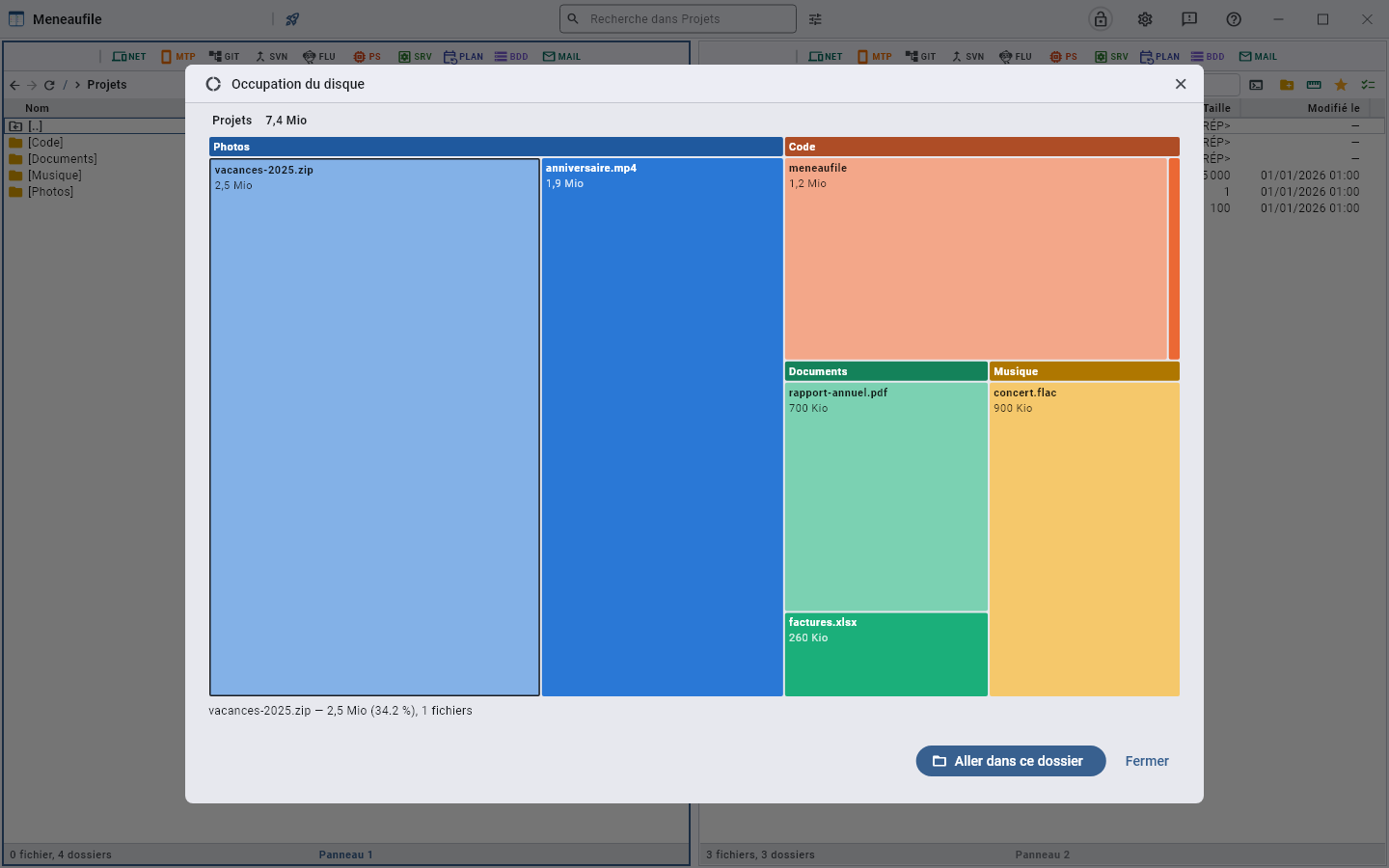
“Disk usage”, in a folder’s menu, draws what weighs the most: each area is a subfolder, its surface is its size, a click goes down into it. It is what you open when a disk fills up and you do not know with what.
For a single folder, Space is enough: it measures it and writes its size in the column.
After a deletion
A deletion gives the space back and the pie chart says so as soon as you hover over it — except through the recycle bin, which keeps the bytes: they only come back when it is emptied.
Sealed files
The list of everything you connect to — sites, servers, machines, secrets — and the list of mail accounts are encrypted FILES.
Two kinds of files
- its own,
local, next to the configuration; - those you have linked: a file on a share, a USB stick, a server. This is how a team shares its passwords — the file stays where it is, Meneaufile only remembers where to look for it.
A linked file has ITS own password, which is not that of the local file. Each one opens and locks on its own.
The key file
A linked file can also have a key file: a second lock, which the password alone does not replace. “Generate a key file…”, in the menu of its row, draws sixty-four random bytes and writes them next to the configuration, under the file’s name — always there, never elsewhere.
A new machine needs its own copy: when the key is missing, Meneaufile says where to put it, and if a panel already shows it, it offers to import it.
Losing a key file closes the sealed file for good. This is said before it is created.
Rename, move
A linked sealed file is renamed from its row: it is the file on the disk that is renamed, its extension kept. Nothing is copied, nothing is decrypted.
Dated copies
Before every write, Meneaufile sets aside the previous state of the file, encrypted like it, in the backup folder of the configuration — %APPDATA%\meneaufile\backup on Windows, ~/.config/meneaufile/backup on Linux. It keeps the last ten of the day, then the last one of each earlier day, over thirty days.
For NET entries, a button takes you back. In the list, the Go back to a previous version… button in the panel’s bar — or the same item when right-clicking the NET button, below the KeePass import — shows the copies by date and time. Choose one, and the list becomes what it was. The state you leave is set aside first: going back can be undone the same way. A copy from before a change of the master password opens only with the old one, and the dialog says so.
For another sealed file, by hand: close Meneaufile, set the damaged file aside, then copy the copy you want in its place under its name — local_20260930-195717.meneaumail becomes local.meneaumail again. The same password opens it.
The twelve modules
Each module opens in a panel and is browsed like a folder: same keys, same selection, same breadcrumb, same draggable columns.
The twelve
| Module | What it opens |
|---|---|
| SAF | Granted folders — the folders Android has let you see |
| NET | Network — network drives, FTP, FTPS, SFTP, WebDAV, S3 |
| MTP | Connected devices — phones and tablets plugged in over USB |
| GIT | Git — Git repositories: changes, branches, history |
| SVN | SVN — Subversion working copies |
| FLU | Flutter — Flutter projects and their toolchain |
| PS | Processes — the machine’s processes |
| SRV | Services — Windows services |
| TASK | Scheduled tasks — the system’s task scheduler |
| REG | Registry — the Windows Registry, in keys and values |
| BDD | Databases — MySQL, MariaDB, PostgreSQL: databases, tables, rows |
| Mail — IMAP and POP3 mailboxes, messages and attachments |
The padlock marks the modules whose passwords are sealed in the vault: they can only be read once it is open, and the title bar padlock names them on hover.
The ones that appear
A button appears only where it makes sense: a phone plugged in, a Git repository in front of you, a platform that has services. SAF exists only on Android, network neighbourhood only on Windows, Flutter only where the toolchain is installed.
You set which ones are shown, and in what order, with “Edit the modules…” at the bottom of their group’s drawer. Hiding a button does not unmount the source: a typed path, a favourite, a search result still lead to it. It is clutter you remove, not a feature.
What they have in common
- Insert creates what the module contains: a connection, a machine, an entry, a database.
- F2 and F3 open the row’s entry. A machine, a connection, a database, an account have no name to fix in place, nor anything to show in the viewer: the two keys lead where you are going anyway.
- F5 rereads — and probes again, when there is something to probe.
- The context menu is the same, entries aside: what does not apply is not there.
- NET and MAIL keep their lists in sealed files, which can be shared.
SAF — Granted folders
On Android, an app sees only what it has been shown. The SAF module holds the list of granted folders.
Allow a folder
“Allow a folder…” opens the system picker: it, and not Meneaufile, grants the access. The folder joins the list and opens with a click.
Remove a permission
The menu of a row’s icon removes it. The folder is not touched: it is the permission that goes, and you will have to ask for it again to come back.
Elsewhere
On Windows and Linux, the button does not exist: there is nothing to allow.
NET — Network
NET Everything you connect to, in a single list: the sites where you have an account, network drives (SMB), FTP, FTPS, SFTP, WebDAV and S3 servers, the machines you control remotely — RDP, VNC, SSH, TeamViewer — and secrets that have no address.
Declaring an entry
Insert opens the dialog. The type comes first, and it is what determines the fields that follow: a site wants an address, a share a path \\server\share, TeamViewer an ID, a secret nothing at all. The rest — name, account, password, comment — is common, because it is the same thing: a target and what it takes to present yourself there.
Each type carries its icon, the very one the row will show: a server for FTP, a console for SSH, a globe for a site, a key for a secret. Fourteen lines of text are read word by word; a shape is picked out at first glance. The field still shows it once closed.
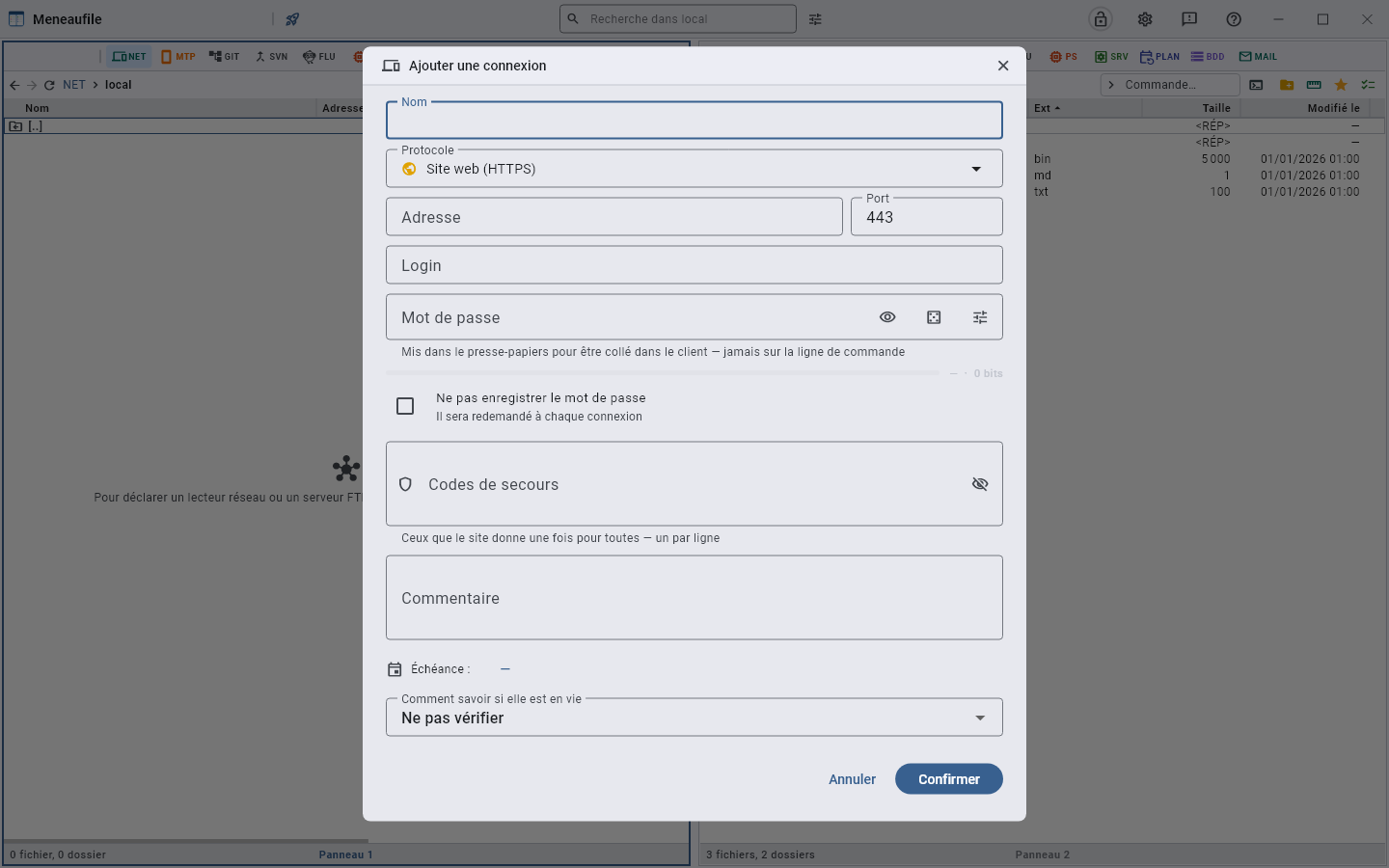
| Type | What a double-click does | Note |
|---|---|---|
| Website (HTTPS) | Opens the site, the password on the clipboard | The default type |
| Website (HTTP) | The same, in the clear | The site sees the password go by on the network |
Network drive (\\server\share) | Connects to the share and enters it | Windows |
| SFTP (over SSH) | Enters the server | Port 22 by default |
| FTPS (FTP over TLS) | Enters the server | Encrypted |
| FTP (unencrypted) | Enters the server | Passive mode ticked by default; some old servers require active |
| WebDAV (HTTP / HTTPS) | Enters the server | The same transport as a site, other files at the end |
| S3 (compatible) | Enters the bucket | A region to name |
| RDP — Remote Desktop | Launches the client, the password on the clipboard | mstsc on Windows, FreeRDP or Remmina elsewhere |
| VNC | Launches the client | RealVNC, TightVNC, Remmina |
| SSH | Enters its files, over SFTP | ssh, shipped with the system |
| TeamViewer | Connects to the partner | A nine- or ten-digit ID, not an address |
| Secret (no address) | Copies the password | A card code, a note, an account with no site |
An SSH key
SSH and SFTP entries have a Private key field: the path to the key, ~/.ssh/srv_web. The field’s button opens the picker in ~/.ssh, and a path chosen under the user’s folder is written with ~ — so the entry works on another machine, under another account. The key itself stays where it is: the entries file does not carry it.
A protected key takes its passphrase from the entry’s password. A key without a passphrase needs no password; if there is one, it serves as a fallback when the server refuses the key.
The command can be pasted as it is. ssh -i ~/.ssh/srv_web [email protected], pasted into the address, fills in the entry: the host, the username, the port if there is a -p, and the key. Pasted into the list, it opens a prefilled SSH entry.
An SSH entry can be browsed. Its double-click enters the same machine over SFTP, with the same account and the same key — no second entry to maintain. On right-click, Open SSH session opens a terminal on the server; once inside, the console window next to the command field opens it in the folder you are looking at.
SFTP reads keys in OpenSSH format — ed25519, RSA, ECDSA. A PuTTY key (.ppk) must first be converted with PuTTYgen. The ~/.ssh/config file is not read: the SSH session still sees it, since it is ssh that opens, but browsing the files does not, whether it starts from an SFTP entry or an SSH entry.
The password
“Generate” draws one; a gauge shows its strength — from very weak to very strong —, and Meneaufile refuses to reuse one of the last five used. The backup codes that some sites give once and for all are kept with it, one per line.
“Copy the password” puts it on the clipboard and removes it after a few seconds — the countdown is shown in the message. The username and the address can be copied too, with the same keys on all entries: you do not relearn three shortcuts because the row is a machine rather than a site.
A checkbox says not to keep the password: it is then asked every time, and forgotten on closing. On a production server, that is sometimes what you want.
Moving around in it
An open file server is a folder: you go into it, take files out of it, drop your own into it, with F6 as everywhere. A machine, a site and a secret are leaves — there is nothing to open inside them, only something to launch on them.
“Disconnect” closes a server’s session without removing its entry from the list.
You enter an entry to search in it. A search launched from the list goes down into no connection: it would open them all, one session and one password per entry, and the wait for each of those that are switched off. It compares the entries themselves — their name, their address, their account —, which remains the way to find the right one in a long list. To dig into a server without entering it, tick its entry before searching: the ticked entries, and only they, are browsed.
Knowing whether the target answers
Each entry says how to check it. A new entry starts on Do not check: you choose the probe for the machines you want to monitor.
- Do not check — the column stays empty.
- Ping — the machine answers. The address to ping can differ from the entry’s: a TeamViewer ID cannot be pinged, you have to name its IP.
- HTTP — the service answers. A server whose application has crashed still answers a ping, and that is precisely what you want to tell apart.
The status column answers Alive, No answer or Checking…. F5 probes the whole list again; “Check now” probes only the targeted row.
Filing entries
Shift+Insert — “New folder” — creates a filing folder: by agency, by site, by client. An entry is filed by dragging it onto the folder, with Ctrl+F6 to the folder the other panel displays, or with Ctrl+X then Ctrl+V. The password follows: it is stored under the entry’s identity, which does not change.
F6 copies an entry: a second entry, with its own identity and its own password, which you edit without touching the first. Removing a filing folder does not remove what it held — the entries go back up to the root.
Nothing goes out to a file folder: an entry has no bytes, and copying it there would write a password in clear text. The files of an open server, on the other hand, come out like any others — that is the whole point.
The list, and sharing it
It is a sealed file: local.meneaunet, and the ones you have linked to share a team’s list. The master password encrypts it and is asked again at every opening; a setting says how long it stays open — until closing, or a few minutes.
Entries, folders and secrets are inside: passwords, backup codes, old passwords. That is what lets a USB stick carry a list that opens — the system keychain, for its part, never leaves its machine. Removing an entry takes its secrets with it, and touches nothing at the other end of the network.
The log
“Remote server log” keeps the dialogue with the servers: that is where you go when a connection refuses without saying why. It can be copied with a button.
MTP — Connected devices
MTP Phones and tablets plugged in over USB, through the MTP protocol.
Plugging in
The device must be unlocked and set to “File transfer”: as long as it is not, the list stays empty and says so in plain words.
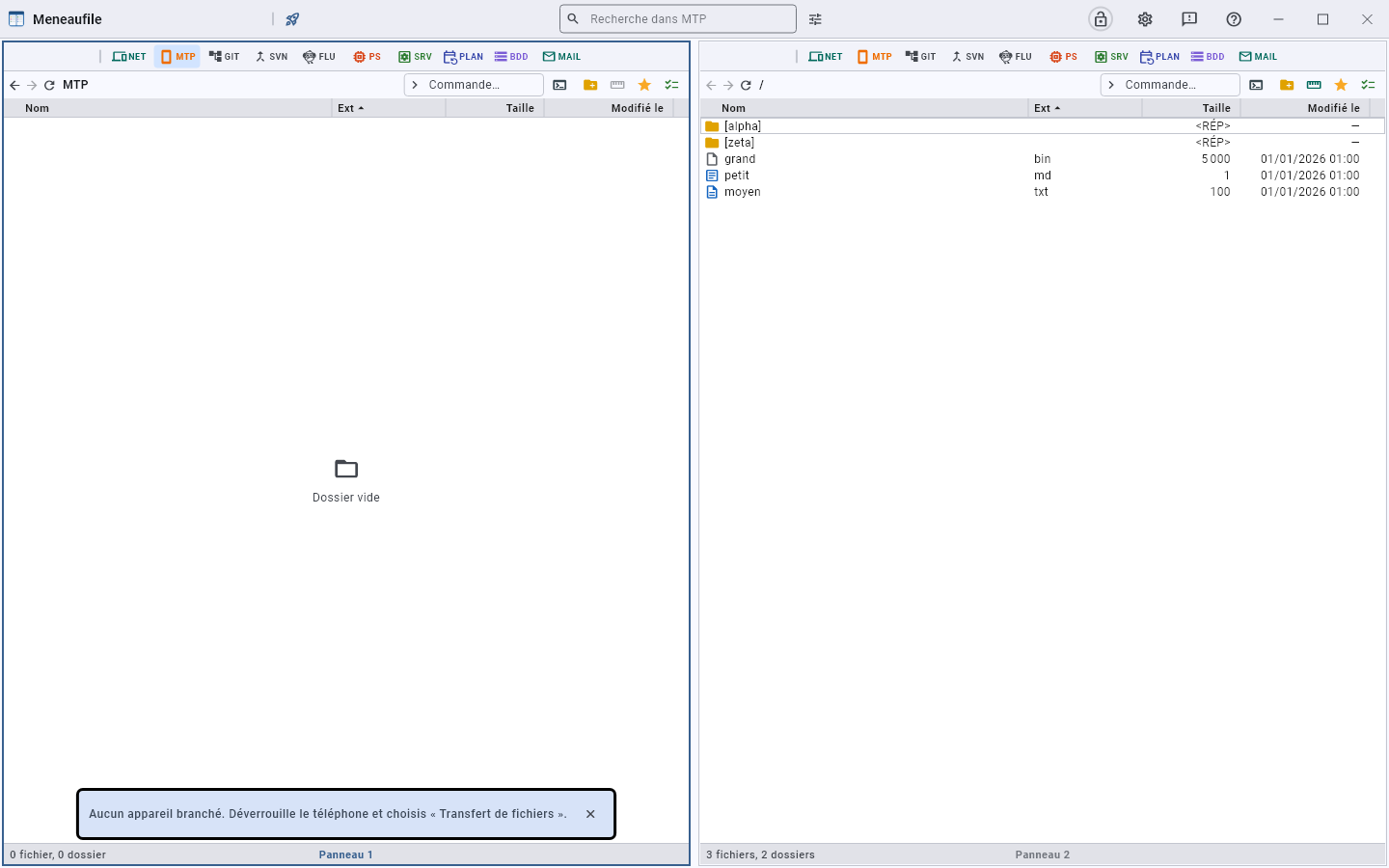
Moving around in it
The internal memory and the SD card are folders, and files are copied to a panel with F6 as everywhere else.
The button
It appears only where the source is mounted: without an MTP driver, there is nothing to open.
GIT — Git
GIT A Git repository is browsed like a folder: the changed files, the branches, the history.
Open a repository
The GIT button in the bar jumps to the favourite project; its right-click gives the list: the known repositories, “Commit”, “History…”, the branches, “Stash…” and “Stashes”, “Tags…”, “Remotes”. A folder on the disk that is not yet a repository gets “Clone a repository here…” there. Projects add themselves as you enter them, and a project whose folder has disappeared is forgotten — unless it is its disk that is missing, an unplugged stick making nothing forgotten.
The state of a folder
Each row carries its colour: conflicted, untracked, modified, staged, ignored. A file is described by git on two axes — the index and the working copy — and a row has no room to show both: it is what remains to be done that decides the colour. The breadcrumb tells the current branch.
Stage and commit
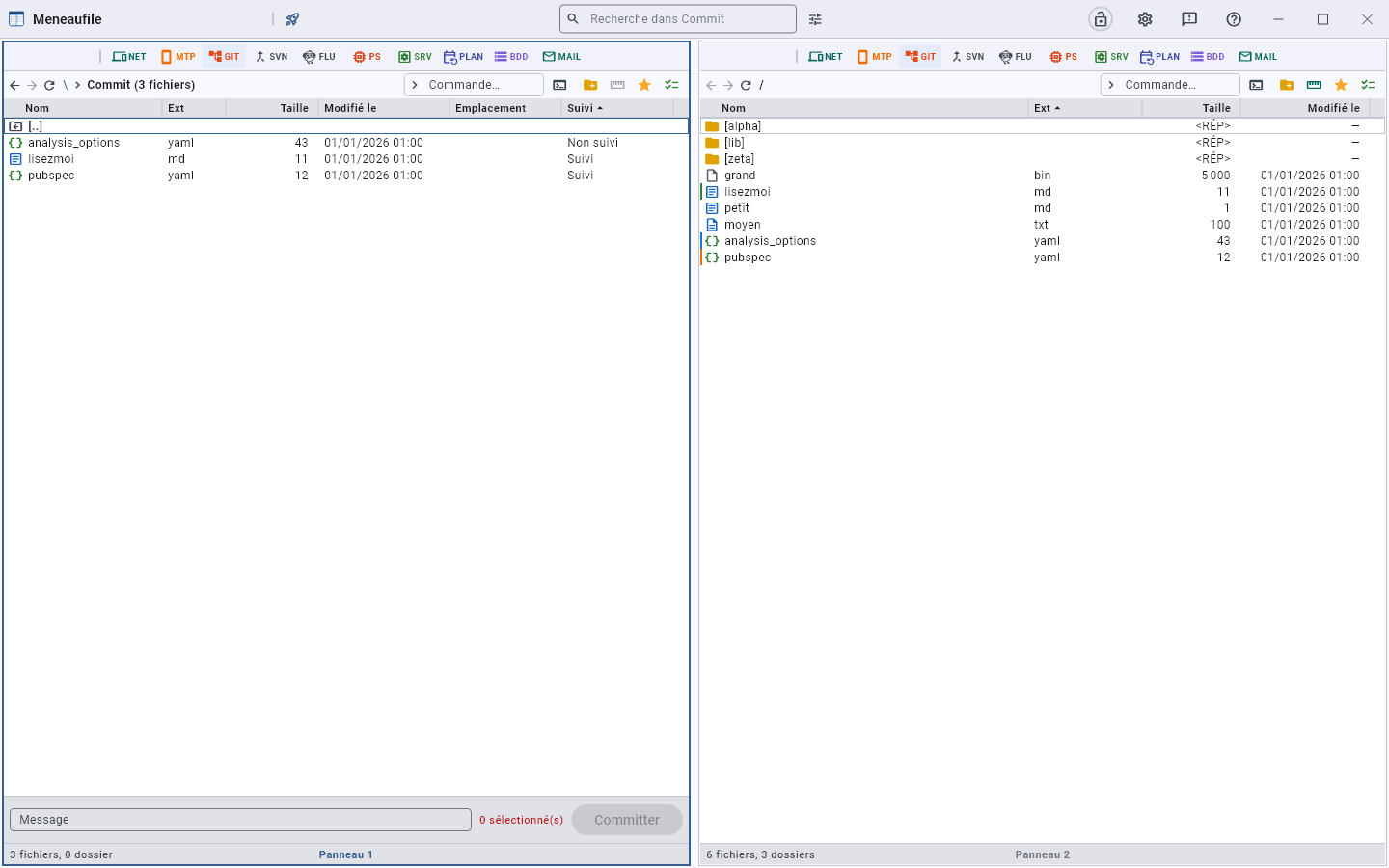
“Commit” opens the changes view: one file per row, the Tracked column saying what git knows about it. You pick rows as anywhere else — click, Ctrl+click, Shift+click —, write the message at the bottom, and Commit goes with what is selected. Nothing selected, nothing goes: the button says so.
The Untracked chip, in the commit bar, hides what git does not track: a folder full of throwaway files no longer drowns the two you want to commit, and Ctrl+A no longer takes them along. Unchecked, it says how many it hides.
See the differences
“Show differences” opens the block-by-block diff, between the working copy, the index (staged) and a commit — before and after are named there. A binary file says so rather than showing noise.
The actions
- Commit with its message.
- Ignore: the file joins the
.gitignore. - Rollback: the dialog says how many new files will leave the disk and how many will go back to their state in the repository. Uncommitted work is lost — it is written out.
- Copy › clipboard: a row in the changes list is a file on the disk, and is copied as such — to paste elsewhere, including outside Meneaufile. Neither cut nor paste: the list is recomposed by git, you do not remove a row from it and you write nothing into it.
- Open in its location: the file is elsewhere than its row — the row lives in the list, the file in the working copy, where you edit it. That is where the entry leads.
Branches and history
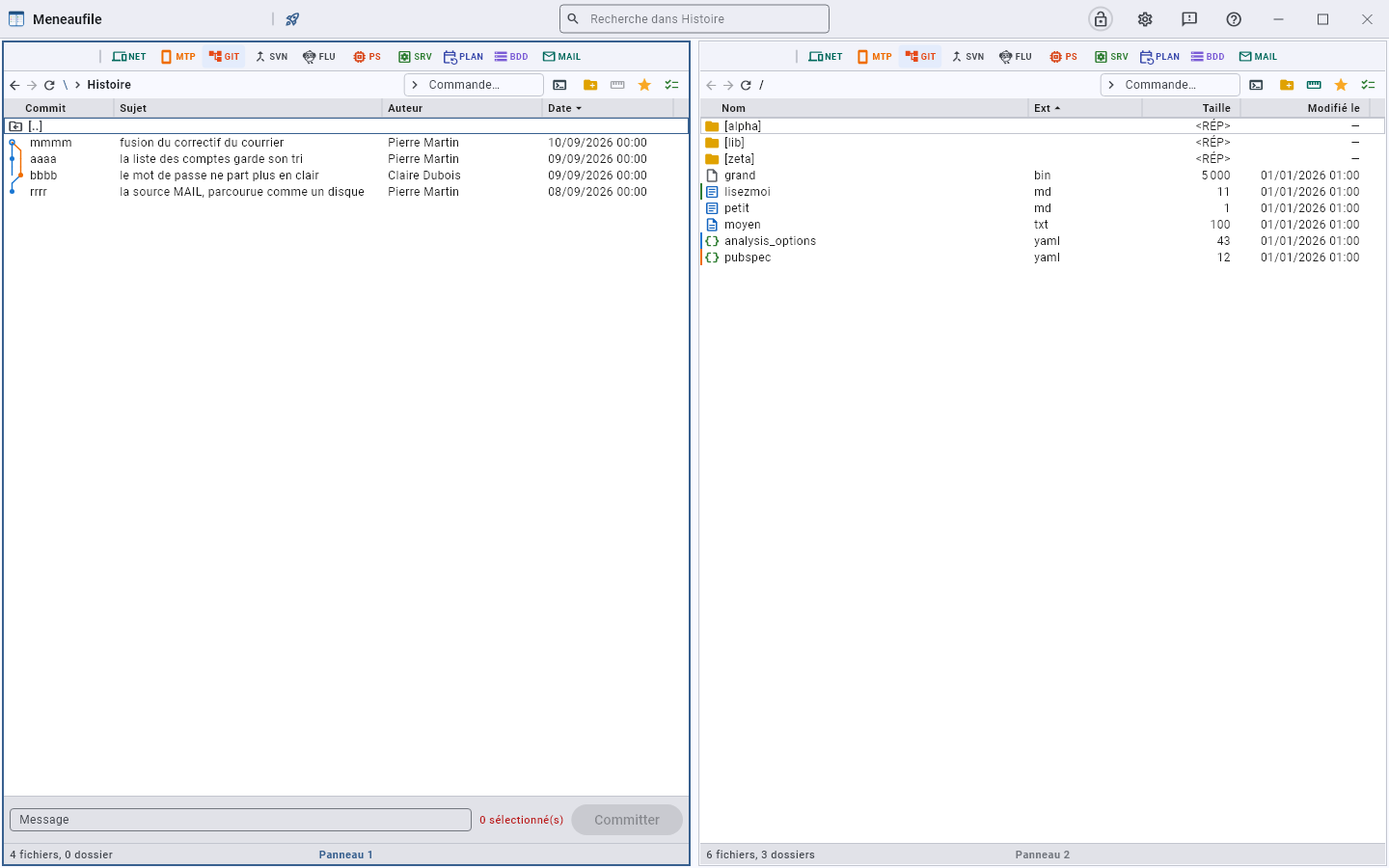
Create a branch, switch to it, merge — the entry carries the branch’s name, and answers nothing to merge: already up to date or merge stopped: some files conflict. “History…” lists the commits: their short hash, their subject, their author, their date. The left gutter draws the graph, each row on its own line, and a merge draws its stroke towards the neighbouring column. A double-click opens a commit’s detail: its full message and the files it touched.
The merge request tree
Merge request tree…, in the GIT button menu, draws the open MRs of the GitLab project the remote points to. Each one sits under the branch it starts from, indented by one step like a table of contents: the step tells the order in which to approve them, and a click on a card opens the MR in the browser.
- The origin is read from the commits. An MR branched from another sits under it, even when both target
main: “after !28” says which one to approve first, and “targets main” warns that it still targetsmain— merging it first would carry the other one’s commits along. - The badges show the state GitLab reports: draft, conflicts, needs rebase, needs approval, open discussions, pipeline running, ready.
- The Checkout button, at the top right of each card, switches the working copy to the MR’s branch, to try it or review it before approving. The branch is fetched from the server first; work in progress is offered for stashing, as for any branch switch. A check mark shows the branch you are already on.
- The personal access token, with the
read_apiscope, is created in GitLab: User settings › Access › Personal access tokens › Generate token. Meneaufile asks for it once and keeps it in the vault, in an entry of its own; a NET entry holding the account password is not taken for a token.
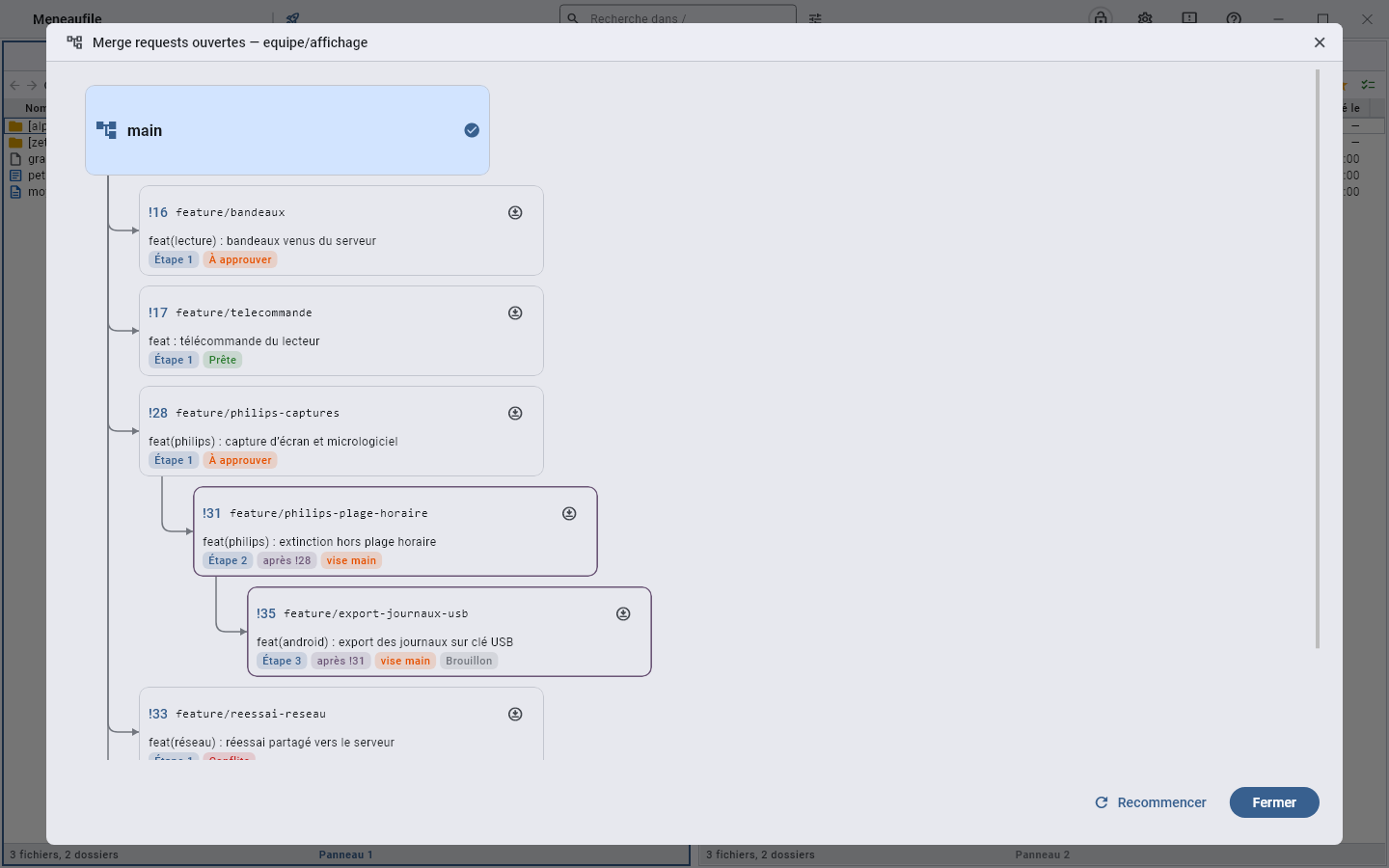
main, where you are.Exchange with the remote repository
“Pull” and “Push”, with the number of commits involved next to the label — zero is not written. A branch that does not exist yet on the other side goes with its upstream. Remotes are declared and removed from the same menu. When the server asks for credentials, Meneaufile asks in turn rather than staying stuck without a word.
Set aside
“Stash…” puts work in progress aside without committing it, with an optional description; “Stashes” — Stashed work — lists what is waiting, and from there you restore or discard. “Tags…” adds and removes tags the same way.
Who wrote this line
“Blame”, in a file’s menu, attributes each line to its commit and its author. It is the question you ask in front of a surprising line, and a list of commits does not answer it.
Conflicts
A conflicted file opens on its versions: the common version, ours, theirs, and the result you build. “Take all” pours in one whole side, “Resolve” saves — and the file leaves the conflicted category.
Clone
From a folder: the address (https://… or git@host:org/repo.git), the name of the folder to create, and a full or shallow history — the last N commits.
Bundles
A .bundle file is a Git repository packed into a single file: a way to carry a project on a stick, or hand it to someone, without a server. A double-click tells what it carries — its branches, its tags — and Clone here… turns it into an ordinary repository, next to it, without a network. In a repository, Create a bundle… in the GIT menu packs the whole of it into the folder of the other view.
If git is missing
Meneaufile calls the system’s git. Missing or outside the PATH, it says so rather than failing for no reason.
SVN — SVN
SVN A Subversion working copy, with the same gestures as everywhere.
The actions
- Check out a copy… from a repository address.
- Update — up to date, revision 1234, or update done, but conflicts remain.
- Commit… with its message.
- Put under version control, remove from the repository.
- Mark conflicts resolved, clean up the copy.
Read
The history lists the revisions; the differences open in the same view as Git’s. The breadcrumb tells the branch and the revision (r1234).
What does not come back
Reverting changes is final: what is reverted does not come back, and the dialog says so beforehand — for a single item as for the whole copy.
FLU — Flutter
FLU Flutter projects, and the toolchain that goes with them.
The projects
The list remembers the projects that were opened. “Create a Flutter project” asks for the package name and the folder.
What a left click does depends on where you are. In a project, it opens the menu: that is what you need on the spot — run, build, the devices. Elsewhere, it jumps to the last project opened from this button, where there is nothing to act on. Right-click opens the menu everywhere.
The commands
Get dependencies, analyze, test, format, clean, upgrade, see outdated dependencies, run the diagnostic. Build release targets Windows, Linux, Android (APK or bundle) and the Web — and it really is --release for all five, which the earlier label, “Build…”, did not say.
Build debug targets the same five platforms with --debug: it is the same menu, only the mode changes. It asks for no device — this is how you drop a debug binary without waiting for the toolchain to answer.
Run
The device list is behind its entry, not inside it. Spread out in the menu, it forced the toolchain to be queried on every opening: flutter devices takes a few seconds, and you paid that delay just to pick “Analyze” or “Get dependencies”. It is now looked up only when it is about to be used. A single target — and the command starts without asking anything.
“Run” looks for devices and offers its own — or all of them. The output is displayed as it comes, with Flutter’s keys within reach: reload (r), restart (R), help (h), detach (d), clear the output (c), quit (q). “Run with options…” adds whatever you want to flutter run — --profile, --dart-define=key=value. “Look for devices…”, at the bottom of that same menu, restarts the search and comes back to it: a phone plugged in afterwards would never appear otherwise.
The end is stated: Done, Failed (1), Stopped. The output can be copied with a button.
A successful build leads to its file. A button then appears in the banner: it takes the view to the result’s folder and puts the cursor on it — the .exe, the .apk, the bundle. It is the toolchain that says where it wrote, not a list of paths kept here: each target puts its own elsewhere, and this changes with Flutter versions. Nothing appears while the command is running, nor when it has failed — there would be nothing to show.
If the toolchain is missing
The button appears only where Flutter is installed.
PS — Processes
PS The process list, sampled at an adjustable rate.
Read
The columns show the memory, the user, the command line.
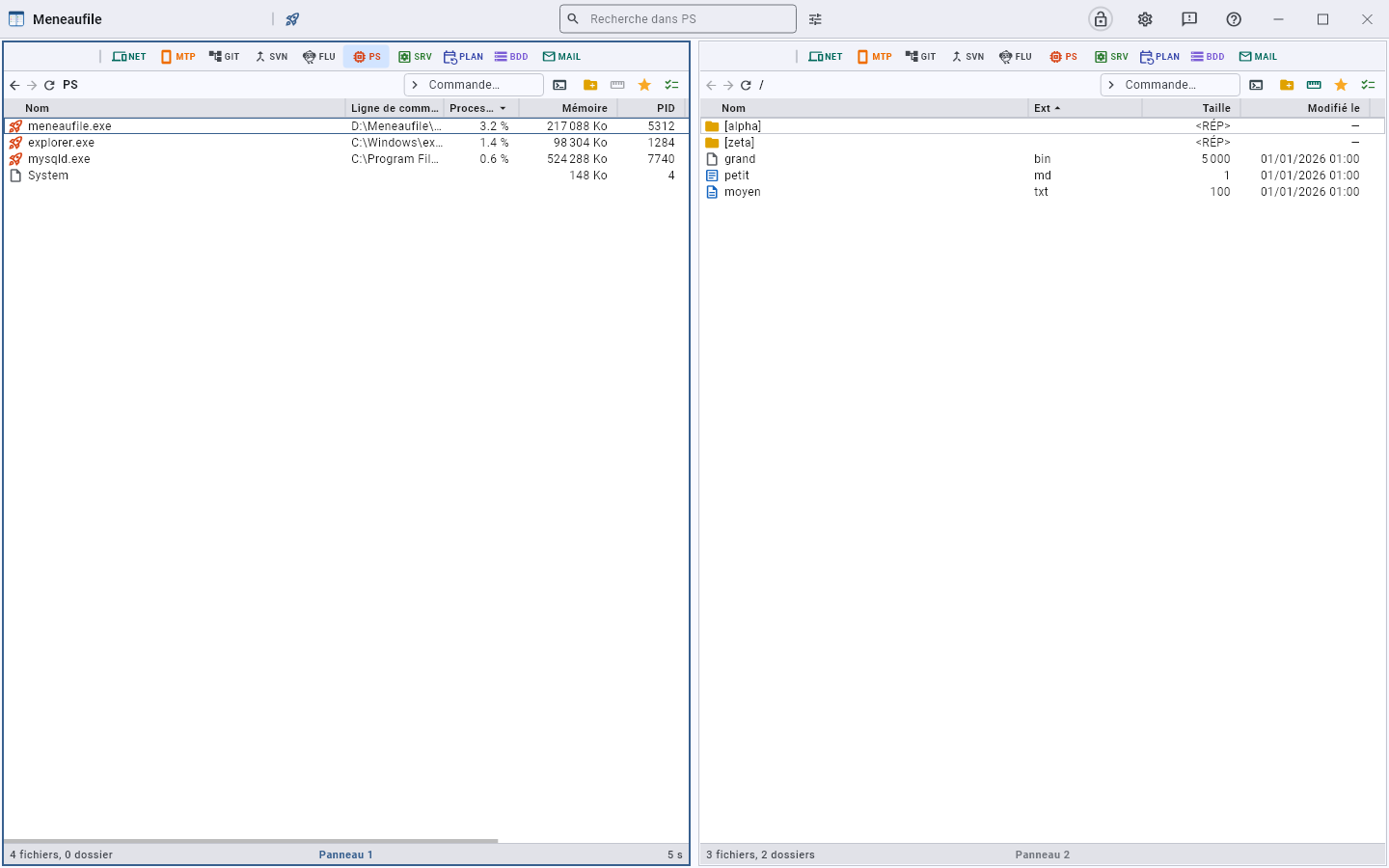
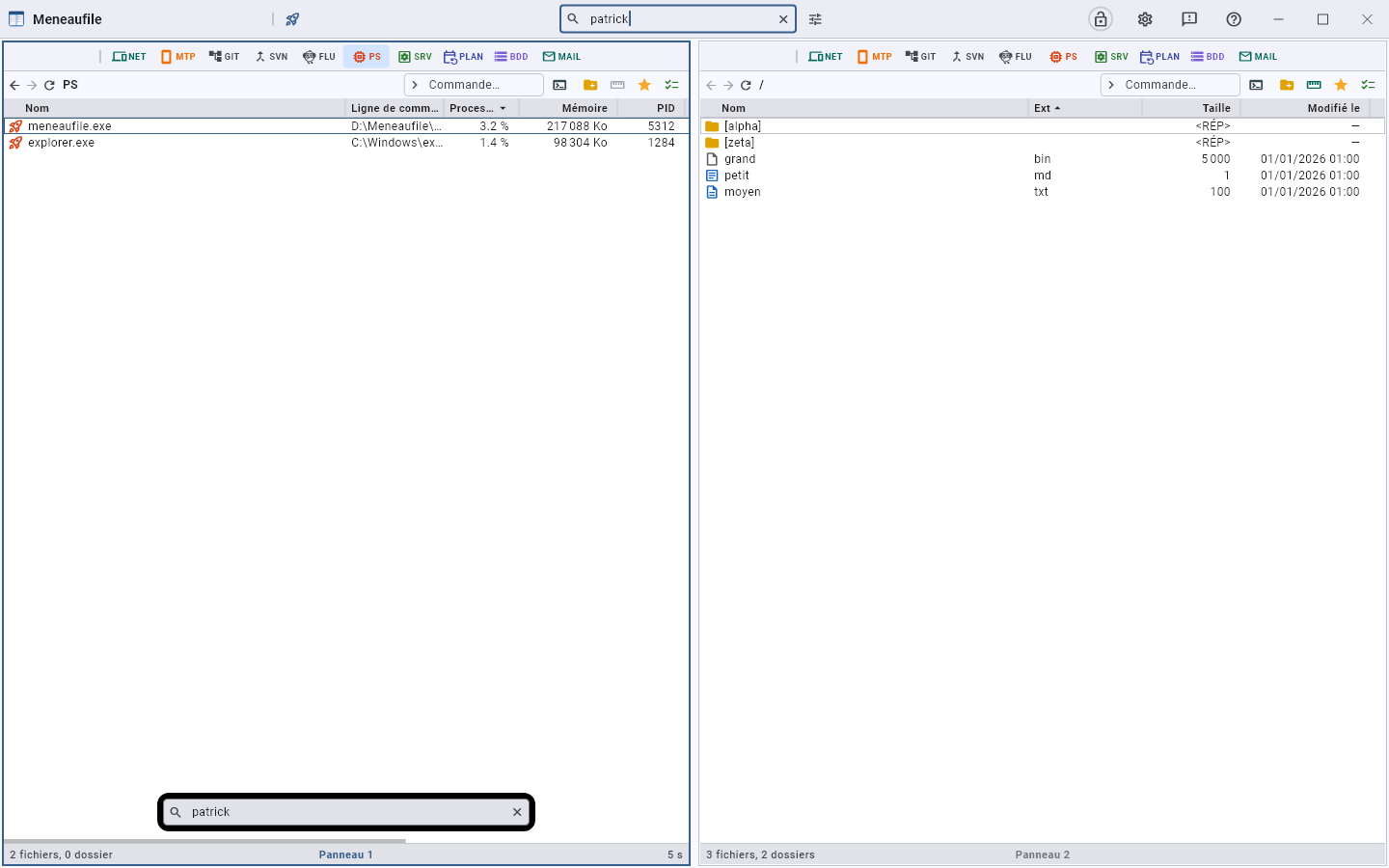
Search
The title bar field — “Search in PS” — filters the list on everything you read in it: the name, but also the command line and the user. Enter launches; the list keeps refreshing at its rate while the filter is displayed, and the field’s cross gives back the whole list.
The performance graph
Right-clicking the PS button opens the Performance graph — and the list with it: a curve without the list before your eyes would say that something is happening without saying what.
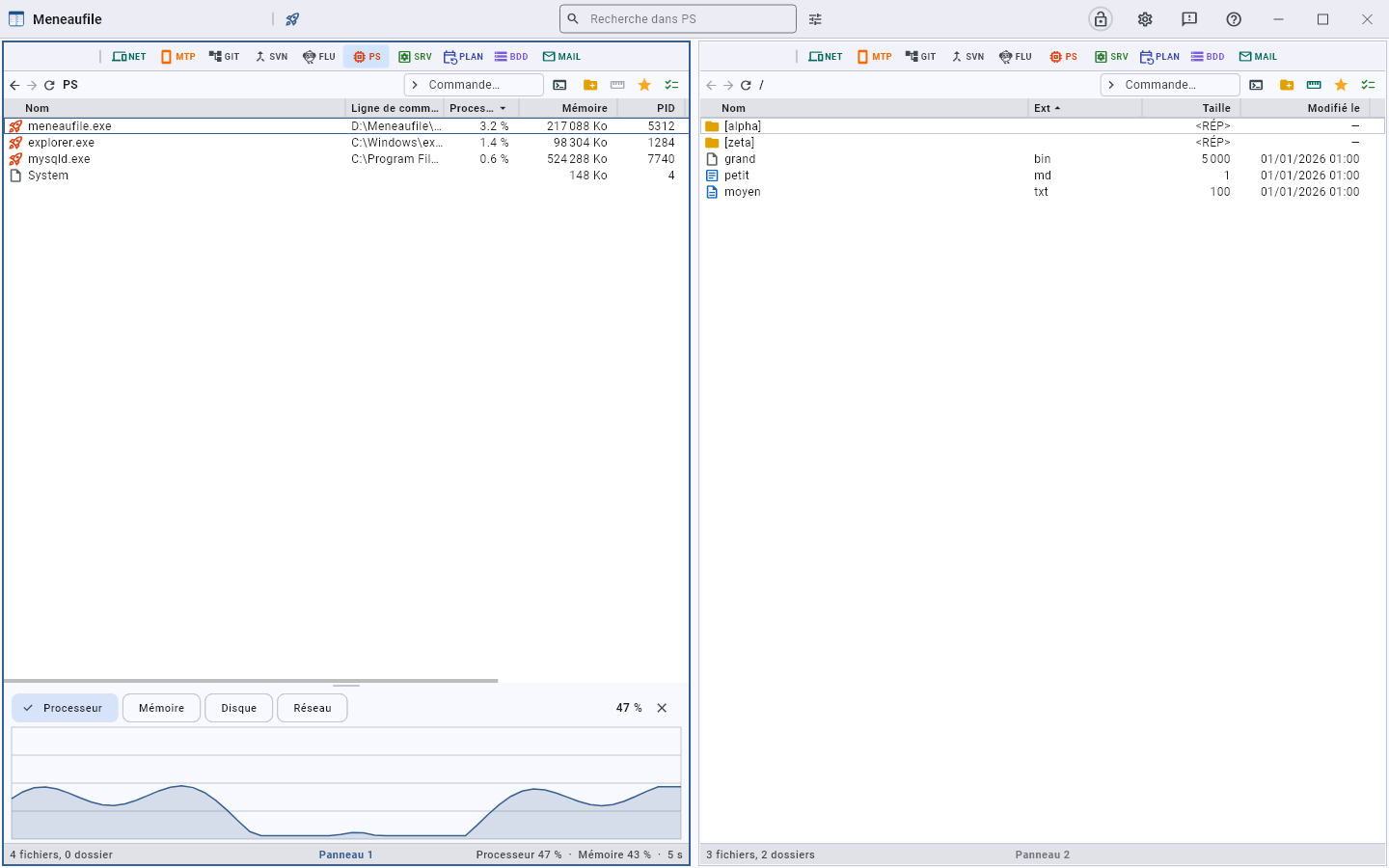
One curve at a time, chosen with the buttons at the top: processor, memory, disk, network. One per disk and one per card, like the Task Manager — a total would have said nothing, a saturated disk and another at rest making fifty percent between them. The value of the last reading is read on the right, and the cross closes it.
The graph keeps the last sixty readings. You drag the line that separates it from the list to enlarge it, and this height is remembered from one session to the next. Closed at the start: a graph costs a reading per interval, and nobody asked for it when opening the list.
The sampling rate
At the bottom right of the view, the machine’s load: Processor 47% · Memory 43% · 5 s. The last number is the rate, and right-clicking it changes it — 5, 10, 15, 30 or 60 seconds. The current rate appears in bold, and the choice is remembered.
That is where it is set, and nowhere else: you read it while watching the load, and it is while watching it that you want to tighten it. It left the settings for this reason — two places for the same thing end up contradicting each other.
Act
- Set priority.
- Copy command line.
- Open the location of the executable — an unreadable file says so.
- End process: it asks for nothing, and whatever is unsaved is lost. The dialog reminds you, and counts how many processes go.
See all processes
Without administrator rights, the list is partial. “Restart as administrator” relaunches Meneaufile elevated — the current window closes. A refusal is reported, and the list stays partial rather than pretending to be complete.
“Open the Windows Task Manager” remains within reach: Meneaufile does not claim to replace it.
SRV — Services
SRV Windows services: their state, their startup, their dependencies.
Read
The state — stopped, running, paused, and the transitional states — and the startup type: automatic, automatic (delayed start), manual, disabled.
Search
The title bar field filters the list on the name and the description: “print” finds the spooler, which you do not always know how to name. It is something the Windows console cannot do. Enter launches, the field’s cross gives back the whole list.
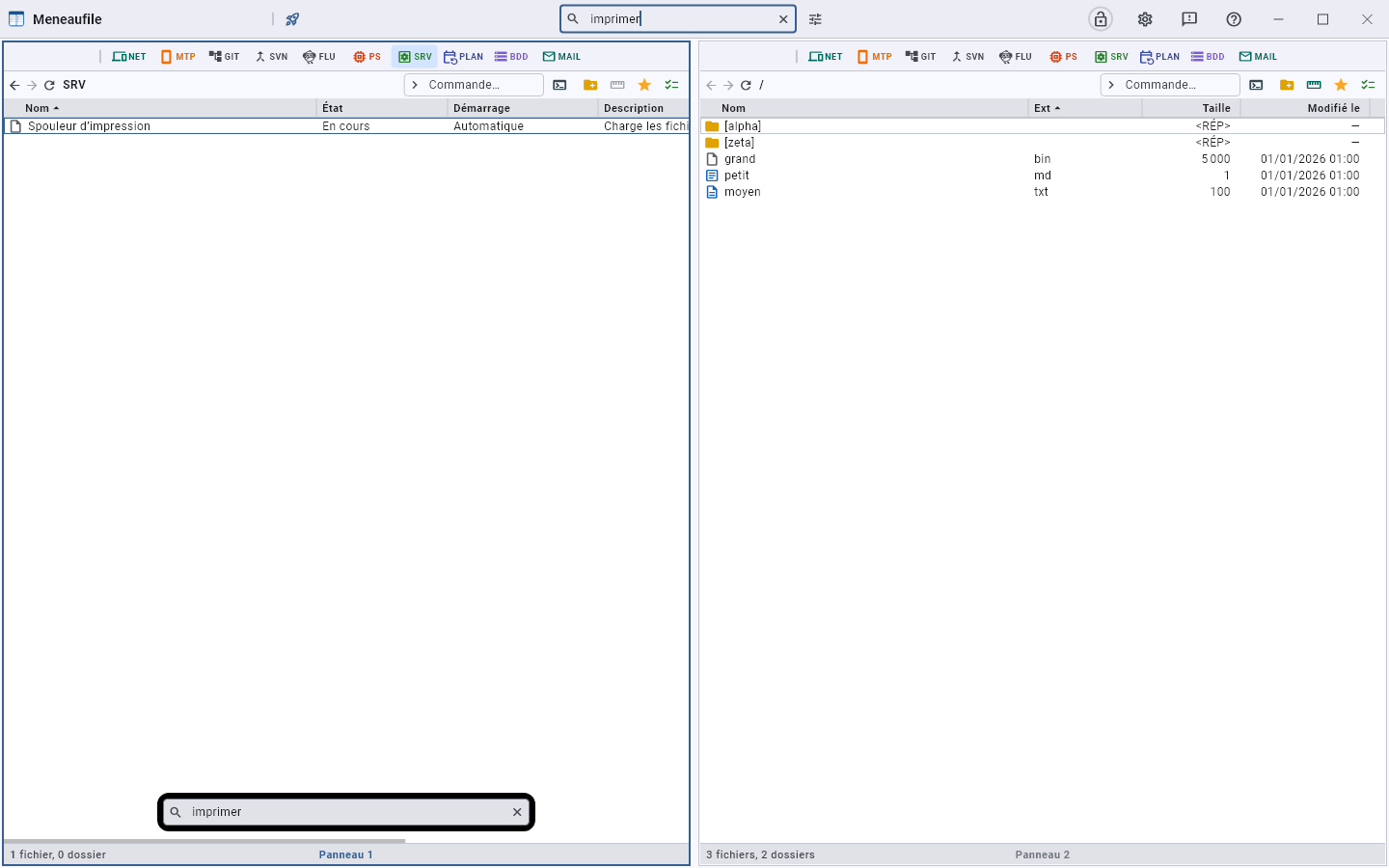
Act
Start, stop, restart, pause, resume, change the startup type. A progress dialog follows the state until the expected one is reached.
- Stopping a service also stops what depends on it; it is not uninstalled for all that.
- When it does not reach the expected state, Meneaufile says it seems stuck and offers to end its process.
The properties
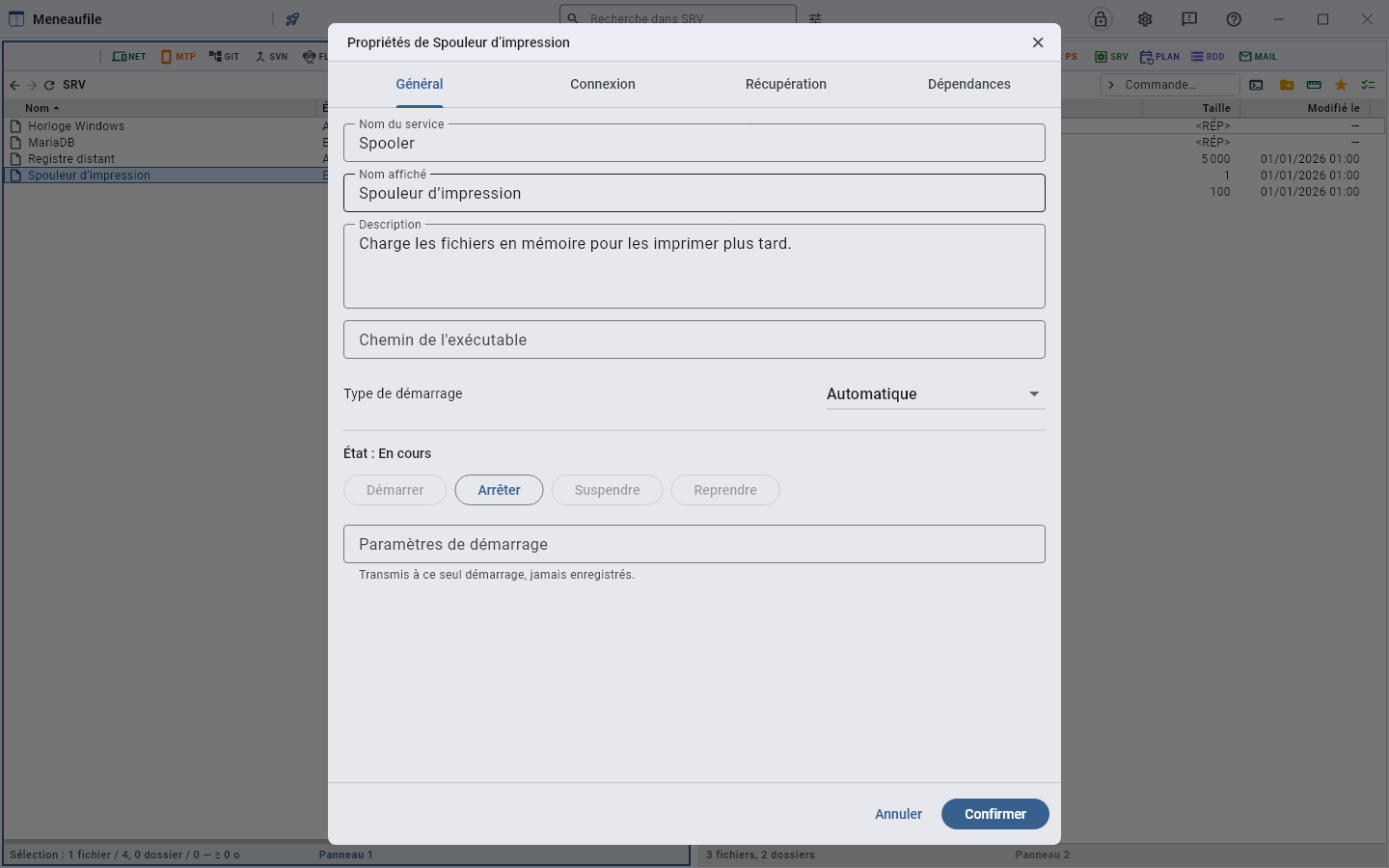
Four tabs: General (system name, display name, description, executable path, startup parameters), Log on, Recovery, Dependencies.
The rights
These commands require administrator rights: Meneaufile offers to relaunch elevated, and says when elevation is declined — nothing has then been sent to the service.
A service account’s password is an exception: it cannot go through an administrator command, where it would be readable in the process list. Meneaufile has to be launched as administrator to change it.
TASK — Scheduled tasks
TASK The system’s task scheduler: what starts on its own, and when.
Browse
The scheduler is already arranged in folders: on Windows, \Microsoft\Windows\Defrag holds defragmentation. Meneaufile browses it like a disk — folders open on double-click, the breadcrumb goes back up, search and sorting work as everywhere else.
Each task shows its state (ready, running, disabled), its next and last run, its last result, its triggers in words — “Every week, Mon, Fri at 21:30” — and what it runs. The author and the description can be shown by choosing the columns.
The button only appears where a scheduler answers: on Windows, when the “Task Scheduler” service is running.
Act
On right-click: Run, End, Enable, Disable, Delete — on one task or on a whole selection. Del deletes too, after naming what is going.
System tasks, under \Microsoft\Windows, can only be touched with administrator rights: Meneaufile then asks again with them, once for the whole selection, and says when elevation is refused.
Create, edit
New task…, on right-click of a folder or in the button’s menu, opens the dialog; double-clicking a task opens it there too. In it you set:
- its name, its folder and its description;
- what it runs: the program or script, its arguments, the folder to start in;
- when: once, every X minutes from a start time, daily, weekly — with its days —, at log on, at startup; as many triggers as needed;
- the account — your own, while signed in; your own, even when signed out, with your Windows password, which the scheduler keeps; or the system account — and the highest privileges.
A trigger the dialog cannot write — on a log event, every fifteen minutes for one hour only — is shown there, and kept as is. On Windows, the task is rewritten over its original definition: its conditions, its power settings and its other actions stay put.
Scheduling an Meneaufile action
A backup every evening, a database export every morning: Meneaufile’s actions can be scheduled. Schedule… is found in the dialogs that already confirm them:
- backup and synchronisation (F10, F11) — the direction and the comparison rule are carried over;
- copy and move (F6, Ctrl+F6), and drag and drop;
- compression (F9) — the archive takes the date of each run,
work-2026-10-03.zip, and never replaces the previous day’s; - exporting a database or a table: Schedule the export…, on right-click.
The dialog says what will be done, then asks when — the same triggers as for a task — and under which account. What a question would have settled is decided in advance: the conflict policy is chosen there, and nobody will be asked. The task is stored in the scheduler’s \Meneaufile folder; that is where you change its schedule or delete it.
When the task fires:
- An Meneaufile window is open: the action goes into its queue, as if you had started it yourself.
- No window, signed in: a window opens for it, and stays.
- Signed out (“even when signed out”, or the system account): the action runs without a window. The system account sees neither network shares nor saved passwords: it suits local files.
A system notification says how it ended, the log records it, and the task’s last result keeps it: 0 for succeeded, 2 for finished with errors, 1 for a failure. A source or a target protected by the master password is not backed up while signed out: nobody would be there to type it. On Linux, the action is scheduled to run while you are signed in.
On Linux
Three folders: systemd, the system’s timers; systemd-user, the user’s; crontab, their crontab. A new task is written as a user timer — a .service and a .timer in ~/.config/systemd/user —, or in the crontab if you put it there. Under the system account, it goes to /etc/systemd/system, and PolicyKit asks for the password.
In the crontab, an Meneaufile task is named by a comment # meneaufile: name above its lines; lines written by hand are read under their program’s name, and stay where they are. What a package placed in systemd can be disabled, but is not erased: its next update would put it back.
REG — Registry
REG The Windows Registry: the settings of the system and of programs, arranged in keys and values.
Browse
At the root, the five hives: HKEY_CLASSES_ROOT, HKEY_CURRENT_USER, HKEY_LOCAL_MACHINE, HKEY_USERS and HKEY_CURRENT_CONFIG. Keys open like folders; a key’s values are its rows, with their name, their type — REG_SZ, REG_DWORD… — and their data, as in the Registry Editor. The unnamed value shows as “(Default)”.
Copy path gives HKEY_CURRENT_USER\Software\…, just as the Registry Editor’s address bar reads it back. The Registry Editor itself stays within reach, in the button’s menu.
The module only exists on Windows.
Edit
Double-clicking a value, or Enter on it, opens it in its dialog, which follows its type:
- a string, or an expandable string, whose
%VARIABLES%are expanded when read; - multiple strings, one per line;
- a 32- or 64-bit value, in hexadecimal or decimal;
- a binary value, in hexadecimal bytes — and any type the dialog does not know, which keeps its own.
Insert creates a value in the open key, Shift+Insert a key; F2 renames a key or a value; Del deletes, after naming what is going. A key goes with its subkeys and its values, and nothing goes through the Recycle Bin: export first whatever you might want to put back.
What Windows refuses — HKEY_LOCAL_MACHINE, most often — is asked again with administrator rights, once for the whole selection.
Export, import
Dragging a key to a file panel, or copying it to the other panel with F6, writes a .reg file — one per key, subkeys included, in the Registry Editor’s format. Selected values go together into a single file, whose name is asked for.
Conversely, a .reg file dropped onto the Registry is imported into it, after confirmation: it writes to the locations it specifies, whatever key is open, and a file that cannot be read in full is not applied at all.
BDD — Databases
BDD MySQL, MariaDB and PostgreSQL: the server, the databases, the tables, the rows — all of it is browsed like folders, and can be edited.
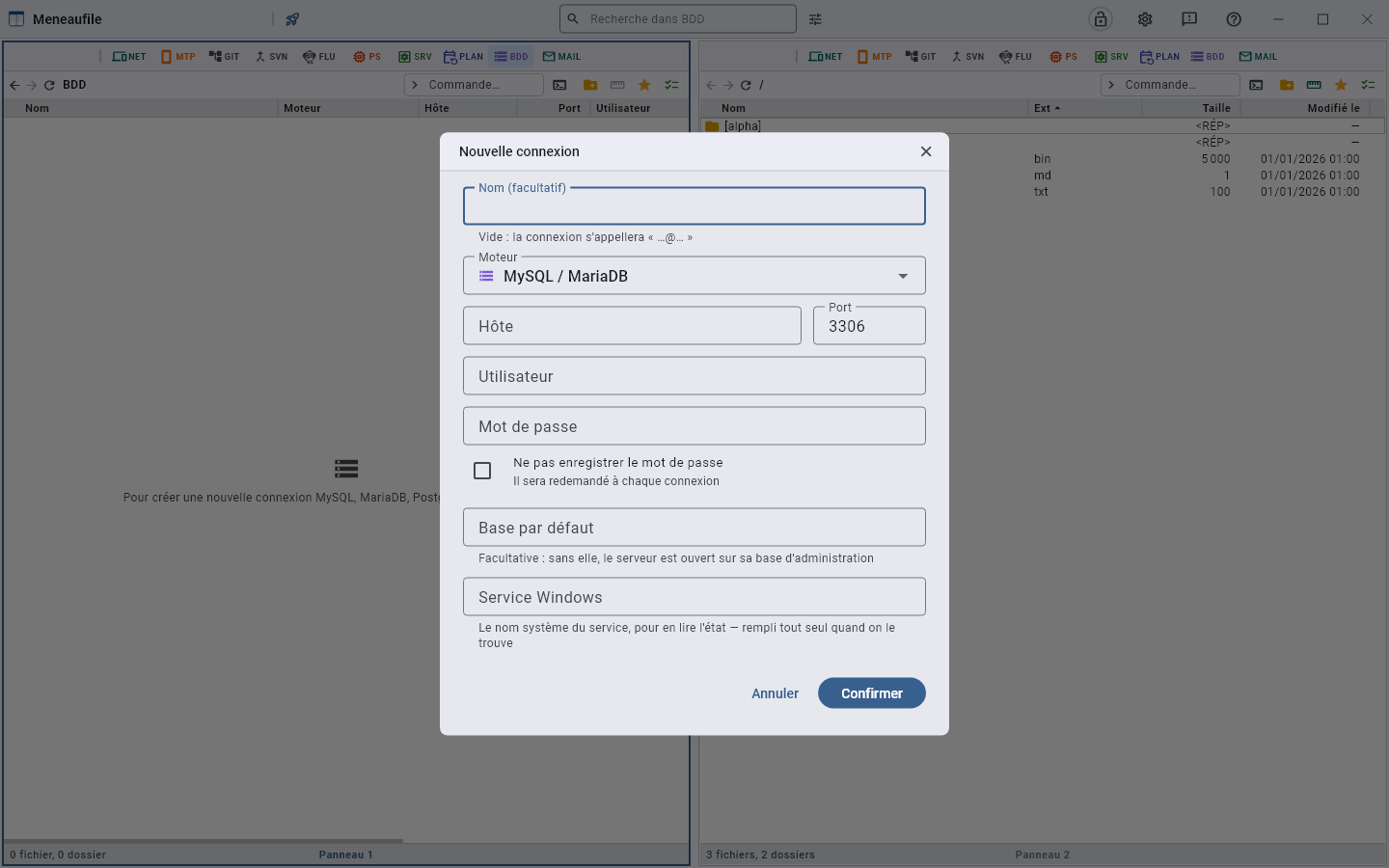
Declaring a connection
The engine, the host, the port, the user, the password, and a default database — optional: without it, the server opens on its administration database. A Windows service can be named to read its state, and Meneaufile fills it in by itself when it finds it.
The named service is one click away, from two places: “Open the service location” in the connection’s menu, and under the error when you enter a database whose service is stopped — the connection refused, the button leads into SRV, onto the service itself, where you restart it. Without it, you had to back out, find the row again and go through its menu.
The engine carries its icon, like the type of a NET entry: you choose in the dialog what you will recognise on the row.
Moving around
Server → databases → tables → rows. F12 switches between a table’s data and its structure. A database can be pinned to find it at the top.
The server also has its own views: accounts, running queries, server status, server settings, routines. They are read-only; their actions are in the right-click menu — change a password, set a variable, kill a process.
The rows
- Edit row: a form, the primary key flagged. A table without a primary key refuses editing — a row is not identifiable there, and modifying it would touch others.
- Find a field: from eight columns on, the form opens with a search. A few letters of the name leave only the fields that carry it, and Enter puts the cursor in the first one. A field hidden by the search keeps what was typed in it.
- A date, time or date-time field has two buttons: the calendar, and Now, which fills in the present moment to the second.
- Add a row, copy row as JSON, copy rows to the clipboard.
- A field can be copied on its own, in one gesture, without opening the form.
The structure
The fields with their type, collation, default value, attributes, comment; the indexes with their nature (primary key, unique, index) and their method. A field is added at the start, at the end or after another — PostgreSQL always adds at the end of the table, and says so.
A type picker sorts the engine’s types by family: integers, decimals, text, dates and times, binary. You filter them by typing.
Empty a table (truncate) removes all its rows, keeps the table, and resets the auto-increment to zero. There is no recycle bin on a server: this is said beforehand.
The relationship graph
“Relationship graph” draws the tables and their joins.
- You drop a table from the list on the left to place it on the drawing; you remove it by dragging it off the drawing, or from its right-click menu.
- You drag a field onto one in another table to draw a join. It is purely visual: the server is not touched.
- “Fit everything” frames the whole; the wheel zooms in and out; a filter finds a table by its name.
- The layout is saved: the drawing stays as you left it.
- “Export as image” writes the drawing into the folder of another view — if there is none, Meneaufile says so rather than writing just anywhere. “Open in its location” then leads there.
Export to a folder
A table has no bytes: it cannot be copied like a file. What you get from it on a disk is an SQL export.
- F6 to a panel that shows a folder, or “Export with structure”, which asks in which view to drop: one
.sqlfile per table. - On an entire database, the export goes through all its tables, under a progress dialog that can be stopped. The final message names the files written; a failure names the table where it stopped — “part of the database is missing” would only show up on replay, too late.
- On chosen rows, the export writes as many
INSERTs, in a file whose name is asked for — the table’s name is suggested. Rows coming from a query that reads several tables are refused: nothing would say where to reinsert them. - Schedule the export…, on right-click of a table or a database, makes it a regular backup: each run writes dated files,
clients-2026-10-03.sql. See Scheduling an action.
Import, clone
- Dropping a
.sqlonto a database replays it, after a question that names the file and the database. A single file, and a.sql: any other drop is refused in a word. At server level, nothing would say where to replay — a database is needed. - Clone database creates a new database on the same server and copies the tables into it. Stopped along the way, the clone stays incomplete, and Meneaufile says so.
- To a database, an export leads nowhere: it targets a disk. This is said out loud rather than left silent — otherwise you would think the file had been written.
Queries
An SQL query is written on the open database and sent with Ctrl+Enter. Recent queries are offered. The result is a list like any other: you sort in it, select in it, export it.
The SQL log keeps everything that was sent, with the number of rows touched. It can be copied and cleared.
Compare two tables
F8 on two tables compares their structures: with no bytes, it is the fields and the indexes that are set against each other. See Compare.
Remove
Removing a connection takes it off the list along with its password. The server is not touched.
MAIL — Mail
MAIL IMAP and POP3 mailboxes are browsed like folders: one folder per mailbox, one file per message.
Declaring an account
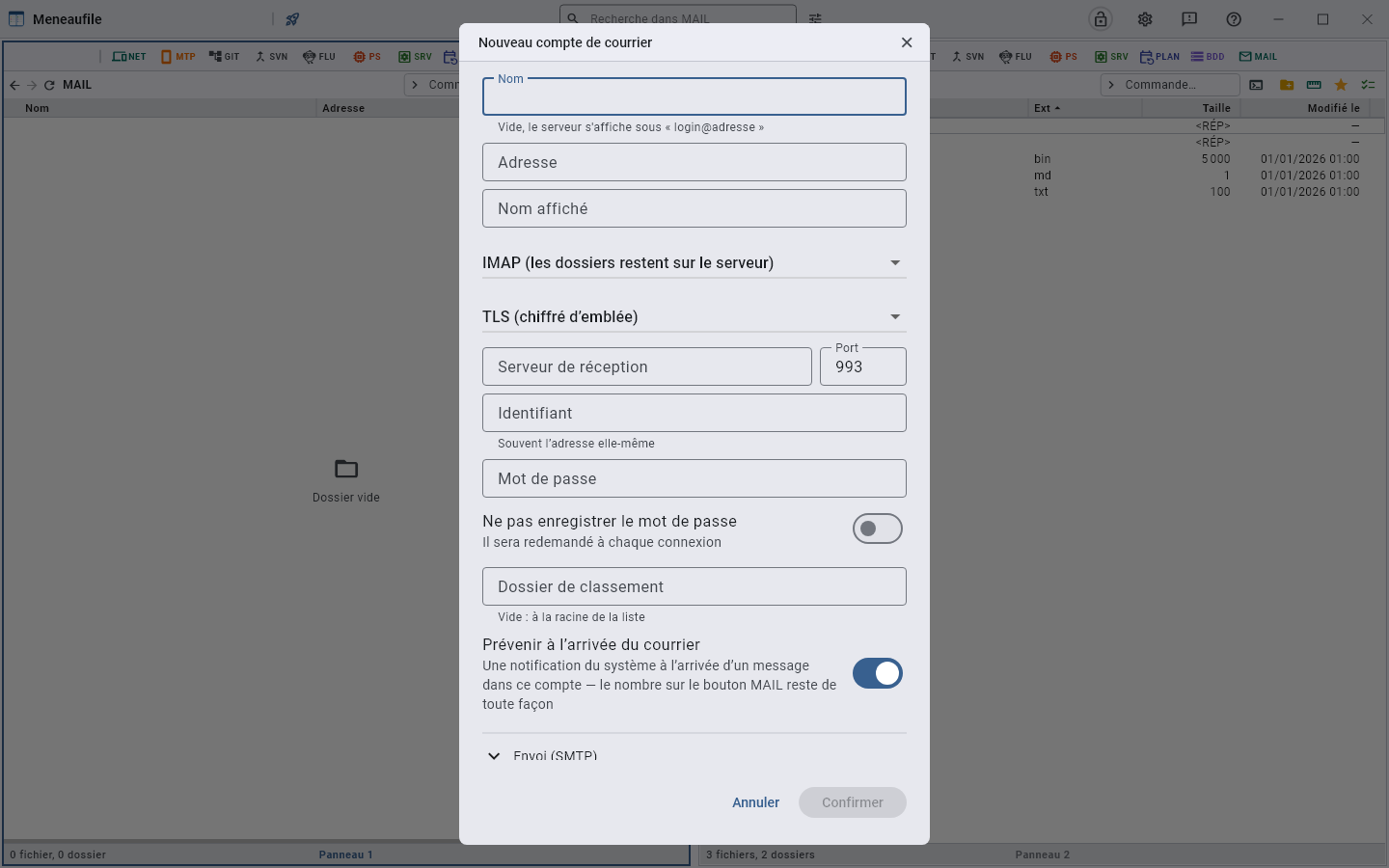
The address, the display name, the protocol — IMAP leaves the folders on the server, POP3 downloads a single list —, and the encryption: TLS from the start, STARTTLS afterwards, or none. Sending (SMTP) has its own section; left empty, it reuses the reading account.
The big providers
The settings of the most widespread mail services in France, all with TLS from the start on these ports. The account is the full address, unless stated otherwise; the password is the mail service’s own — or, for Gmail, Yahoo and iCloud, an app password generated in the account’s security settings, the usual password being refused there for software.
| Provider | IMAP | POP3 | SMTP | Account |
|---|---|---|---|---|
| Orange (orange.fr, wanadoo.fr) | imap.orange.fr 993 | pop.orange.fr 995 | smtp.orange.fr 465 | the address |
| Free | imap.free.fr 993 | pop.free.fr 995 | smtp.free.fr 465 | the username, without @free.fr |
| SFR (sfr.fr, neuf.fr) | imap.sfr.fr 993 | pop.sfr.fr 995 | smtp.sfr.fr 465 | the address |
| Bouygues Telecom (bbox.fr) | imap.bbox.fr 993 | pop.bbox.fr 995 | smtp.bbox.fr 465 | the address |
| La Poste (laposte.net) | imap.laposte.net 993 | pop.laposte.net 995 | smtp.laposte.net 465 | the address |
| Gmail | imap.gmail.com 993 | pop.gmail.com 995 | smtp.gmail.com 465 | the address, app password |
| Yahoo Mail | imap.mail.yahoo.com 993 | pop.mail.yahoo.com 995 | smtp.mail.yahoo.com 465 | the address, app password |
| iCloud Mail | imap.mail.me.com 993 | — | smtp.mail.me.com 587, STARTTLS | the address, app password |
| OVHcloud (hosting) | ssl0.ovh.net 993 | ssl0.ovh.net 995 | ssl0.ovh.net 465 | the address |
| Infomaniak | mail.infomaniak.com 993 | mail.infomaniak.com 995 | mail.infomaniak.com 465 | the address |
| Gandi | mail.gandi.net 993 | mail.gandi.net 995 | mail.gandi.net 465 | the address |
The STARTTLS ports, when a provider prefers them: 143 for IMAP, 110 for POP3, 587 for SMTP. With Gmail, IMAP must be enabled in the mail settings, and two-step verification in place before generating the app password. Outlook.com, Hotmail and Live now accept only “modern” authentication (OAuth), which Meneaufile does not speak: the password alone is refused there. Meneaufile authenticates with a password — AUTHENTICATE PLAIN or LOGIN —, always under encryption.
Read
A message opens with F3 like a file. Attachments are rows: you copy them to a panel like everything else. The columns show the state — unread, replied, flagged, draft, attachment — and “Mark as read” or “Mark as unread” changes it.
The message is read on white paper, whatever the theme — dark as well as light: a light theme draws its surface from the chosen tint, and mail would have been read on pink or pale blue. A plain-text message keeps its fixed-width font, as in a webmail, and wraps: long lines fit in the box instead of running off to the right, and the sender’s line breaks stay the sender’s. An address written out in full is clickable — http:// or https://, and nothing else: guessing an address from a dot would turn every file name mentioned into a link. The full stop that ends the sentence stays with the sentence.
Write
“New message…”, “Reply”, “Reply all”, “Forward”: recipients, copy, subject, body, attachments. An account with no sending server says so — you have to declare one to write from it.
The three actions are in the reading box, at the top right, and on the right-click of a row. “Reply” writes to the sender only, “Reply all” adds the other recipients. Replying closes the reading and opens the writing, quote included.
What happens in the meantime
Every five minutes, Meneaufile asks the servers again what is waiting, and the MAIL button carries the number of unread messages as a badge. Nothing is downloaded: it is counts that are requested, a few bytes per folder. The trash, spam, drafts and sent folders do not count.
Hovering says which mailbox is waiting: the total first, the one the badge carries, then one line per account. With four mailboxes, “12” did not say which to open. A single mailbox keeps its single line, and an account that did not answer has no line — zero would say “nothing is waiting for you”, which is precisely what we do not know about it.
F5 does not wait for the five minutes. Refreshing in mail asks the server again for the account’s folders, their unread counts and their totals: the badge, the folder numbers and the list agree at once. Without it they were kept once and for all, and only the next poll put them right again — you refreshed in front of your mailbox, and nothing moved.
With the vault closed, the watcher stays quiet: the accounts’ passwords sleep there, and it is not for a timer to wake that door.
A folder’s columns
Subject, sender, Date, size, state, identifier. The Date is the one the sender announces: it is the one every client shows, and the sort is done on the server.
Two more columns can be requested in the columns menu, hidden by default because seven columns already fit poorly in a panel:
- Received: when the server received it. The two dates usually differ by a second, by three days when a relay dragged its feet, and by twenty years when the clock on the other end is wrong.
- Read on: when you read it. The protocol does not say — it knows that a message is read, never when —, so it is Meneaufile that records it, at the moment it sets the flag. A message read elsewhere, in webmail or on the phone, therefore arrives read and without a date: that is more honest than an invented date. It is stored next to the messages, in
lu.json: on a USB stick, it travels with them.
Recovering an account’s password
The account list never gives a password back. To read it again — to reconfigure a phone, another application — you copy the account into the NET list: F6 to a view set on it, or drag. The entry carries the account’s name, the username, the address of the reading server, the sending server as a comment, and the password.
Into the filing folder open opposite, and not at the root of the list: that is where you will look for it afterwards. Moving is not possible — the account would have to be removed from its list to be placed in the vault, whereas what is stored there is a duplicate of the password; Ctrl+F6 says so instead of silently copying.
What stays on the server
Removing an account takes it off the list, its password with it. The mailbox itself stays intact on the server.
The settings
The title bar gear opens the settings. They are arranged in sections: appearance, panels, file listing, quick access bar, tools, vault, location.
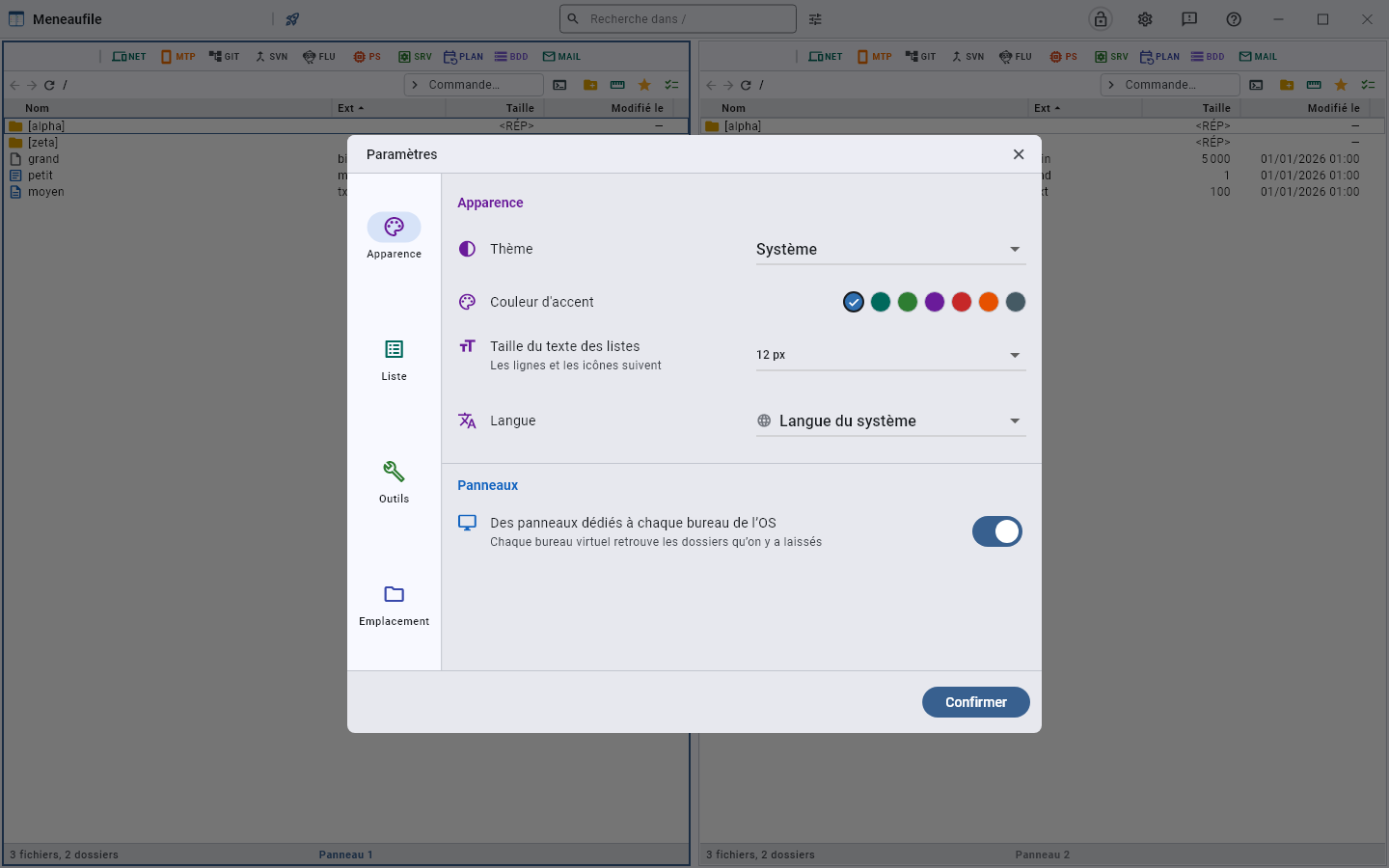
What is not there
What is set while working: the column order is arranged in “Choose the columns”, that of the modules in their drawer, the width of the groups at their handles. A setting you can make right where you see it has no business in a dialog.
- The panel layout is chosen by right-clicking a panel’s number, and with Alt+1 to Alt+0 — see panels.
- The sampling rate of the PS module is changed by right-clicking the machine’s load, at the foot of its view.
- The eject after a copy is ticked in the copy dialog, when the destination is a removable medium.
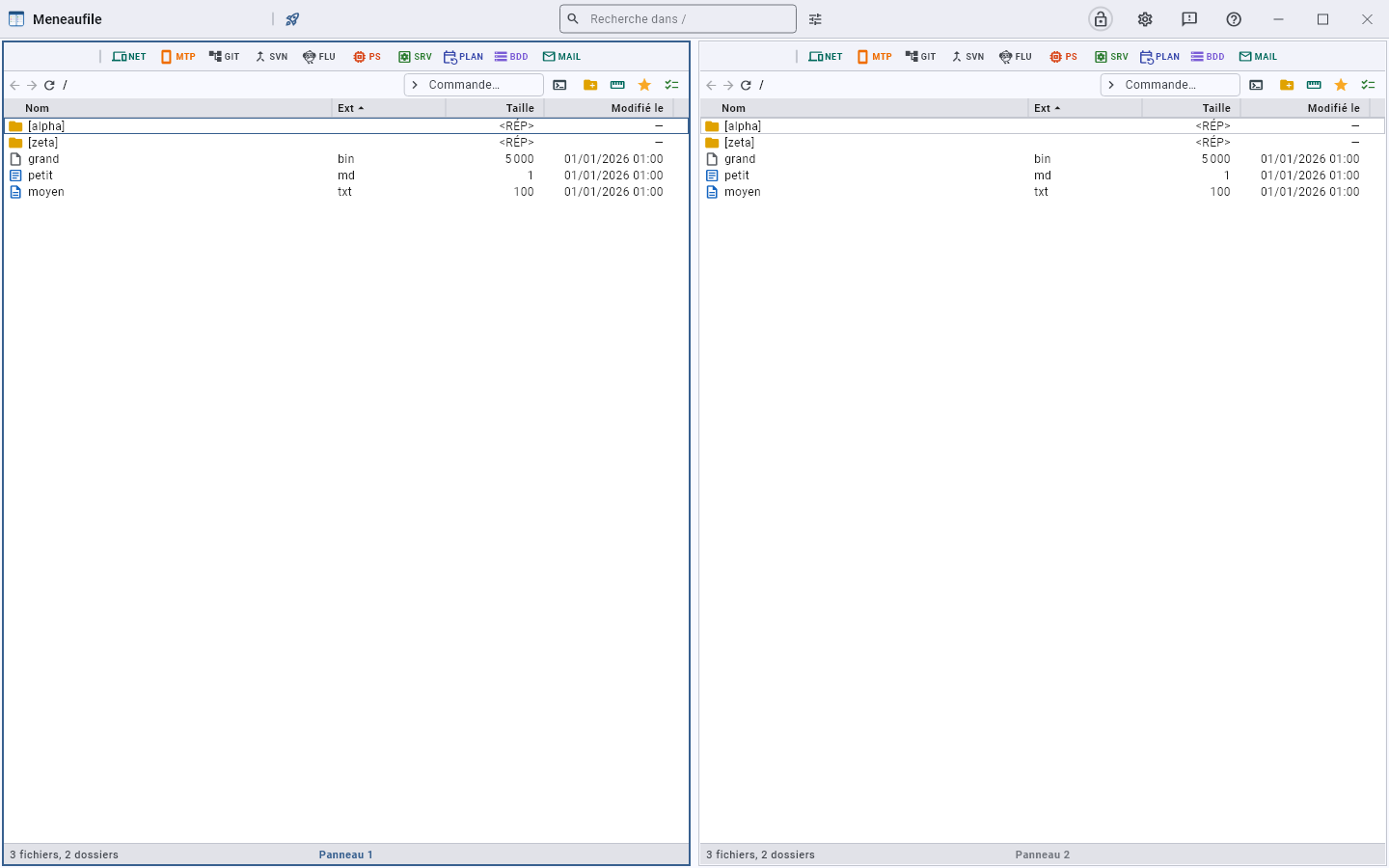
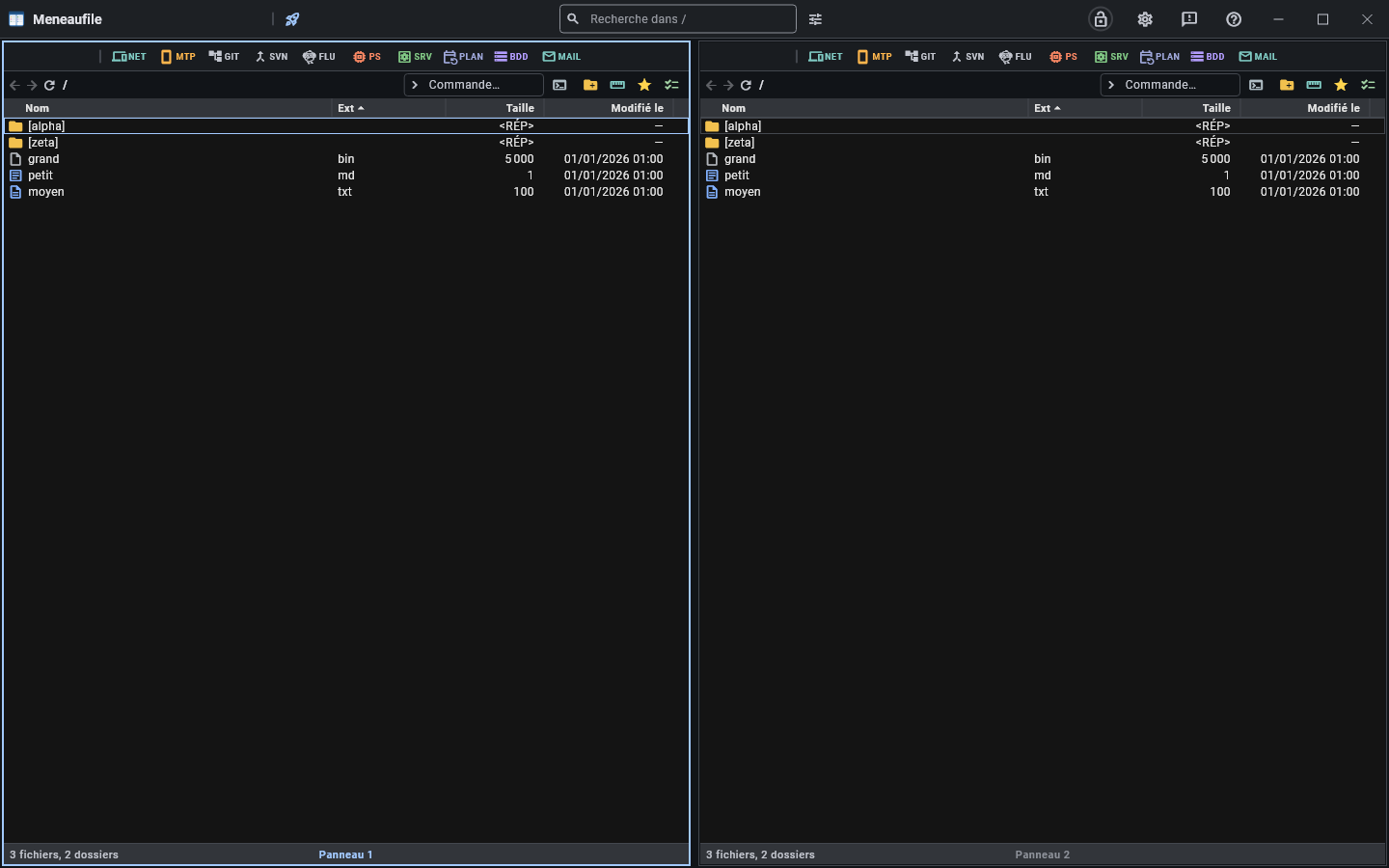
The theme
Three choices: System, Light, Dark. “System” follows the machine’s setting, and changes with it without a restart.
The accent colour
Seven tints, the original first. The whole colour scheme is derived from this seed: the buttons, the outlines, the selection, the cursor.
| Tint | Preview |
|---|---|
| Blue (original) | |
| Teal | |
| Green | |
| Violet | |
| Red | |
| Orange | |
| Slate |
A short list, and not a colour picker: a tint picked at random gives contrasts nobody has tried — a bright yellow accent makes the button text unreadable. These are dark enough to carry white in the light theme, and bright enough to stand out in the dark one.
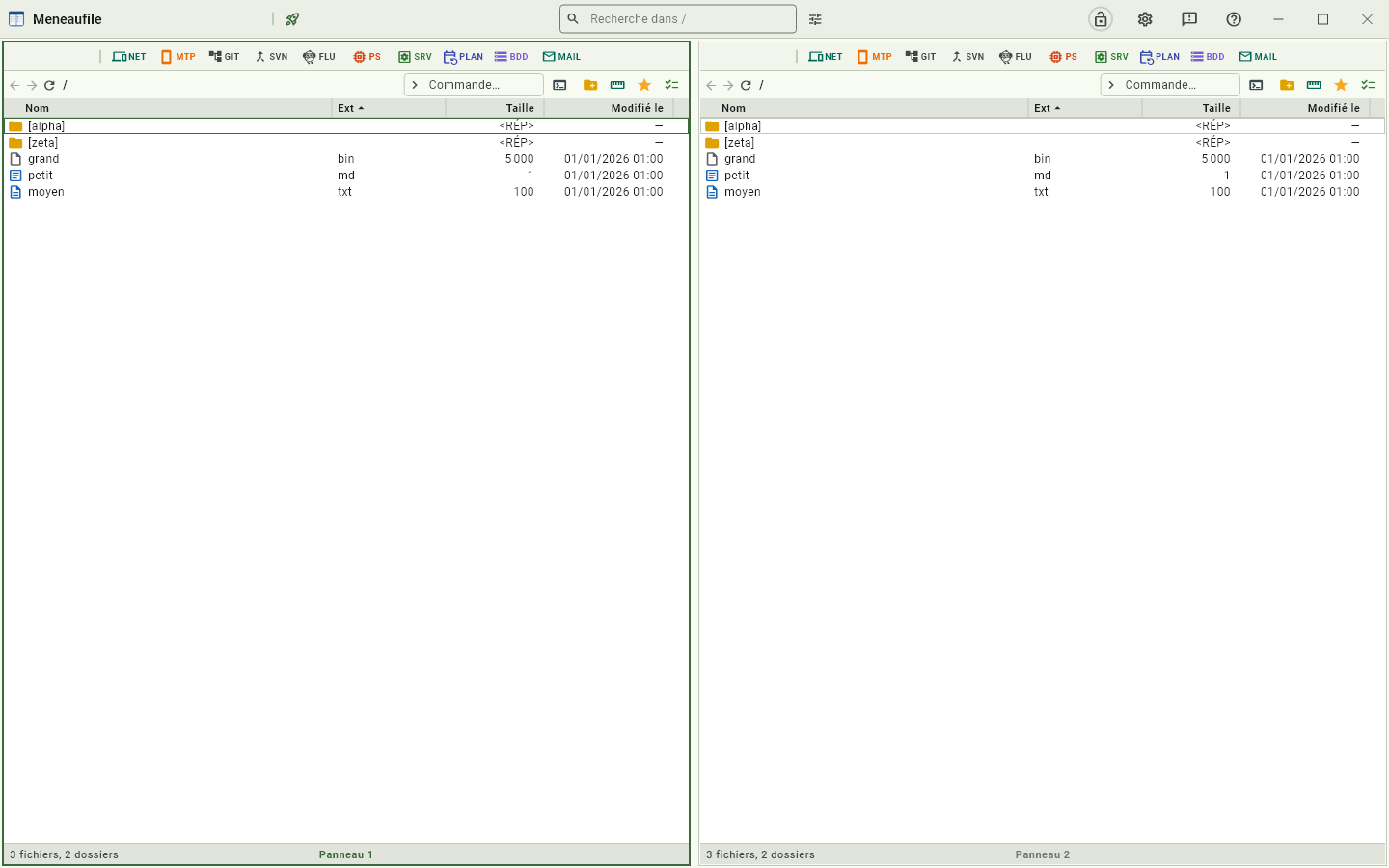
What the accent does not tint
The background of a dense list stays plain white in the light theme. Material normally tints its whole palette with the chosen colour; over hundreds of rows, that coloured veil tires the eye and muddles the tints of file types, which are the ones that carry meaning.
The language
Twenty-five languages, plus “System language”. The interface changes without a restart.
The list
- List text size: rows and icons follow.
- The columns, their order and their width — set in the list itself, and saved for this folder, for similar lists, or for all.
The tools
- Text editor: the one F4 opens. “The first one found”, or a chosen program — the
%1placeholder stands for the file; without it, the file is appended at the end. - Run the queue all at once: long actions all start as soon as they arrive, instead of waiting their turn. See the queue.
- Messages per batch: how many messages a mailbox downloads at once, the rest arriving when you scroll to the bottom. See MAIL.
The vault
How long the vault stays open: until closing, or a few minutes. After that delay, the master password is asked again.
The configuration location
Portable mode: the configuration normally lives next to the user’s profile. A marker placed next to the executable makes it live there, and the app then leaves no trace on the machine — key files included, and this manual with them.
What has limits
What has limits, and why.
- The viewer reads sixty-four mebibytes in one piece; beyond that it shows a window of the file, and two bounds lead to the start and the end.
- A protected folder goes entirely through memory: beyond sixty-four megabytes, Meneaufile refuses rather than crash. The action is meant for documents, not a disk image.
- A service cannot be seen across the network: the state of a remote server is what its host answers to a ping, not that of a service.
- A TeamViewer ID cannot be pinged: to monitor a machine reached this way, you have to give its IP address.
- A table cannot be copied like a file: it has no bytes. What you get from it on a disk is an SQL export — see BDD.
- An export from one database to another database leads nowhere: the export targets a disk. To populate a database, you replay a
.sqlin it, or you clone.
Meneaufile manual, in English.