 English
 বাংলা
বাংলা Čeština
 Dansk
Dansk Deutsch
 Español
 Français
 हिन्दी
 Magyar
 Bahasa Indonesia
 Italiano
 日本語
日本語 한국어
한국어 Norsk bokmål
 Nederlands
 Polski
 Português
 Română
 Русский
 Slovenčina
 Slovenščina
 Svenska
 Türkçe
 Tiếng Việt
 中文
中文GIT — Git
GIT A Git repository is browsed like a folder: the changed files, the branches, the history.
Open a repository
The GIT button in the bar jumps to the favourite project; its right-click gives the list: the known repositories, “Commit”, “History…”, the branches, “Stash…” and “Stashes”, “Tags…”, “Remotes”. A folder on the disk that is not yet a repository gets “Clone a repository here…” there. Projects add themselves as you enter them, and a project whose folder has disappeared is forgotten — unless it is its disk that is missing, an unplugged stick making nothing forgotten.
The state of a folder
Each row carries its colour: conflicted, untracked, modified, staged, ignored. A file is described by git on two axes — the index and the working copy — and a row has no room to show both: it is what remains to be done that decides the colour. The breadcrumb tells the current branch.
Stage and commit
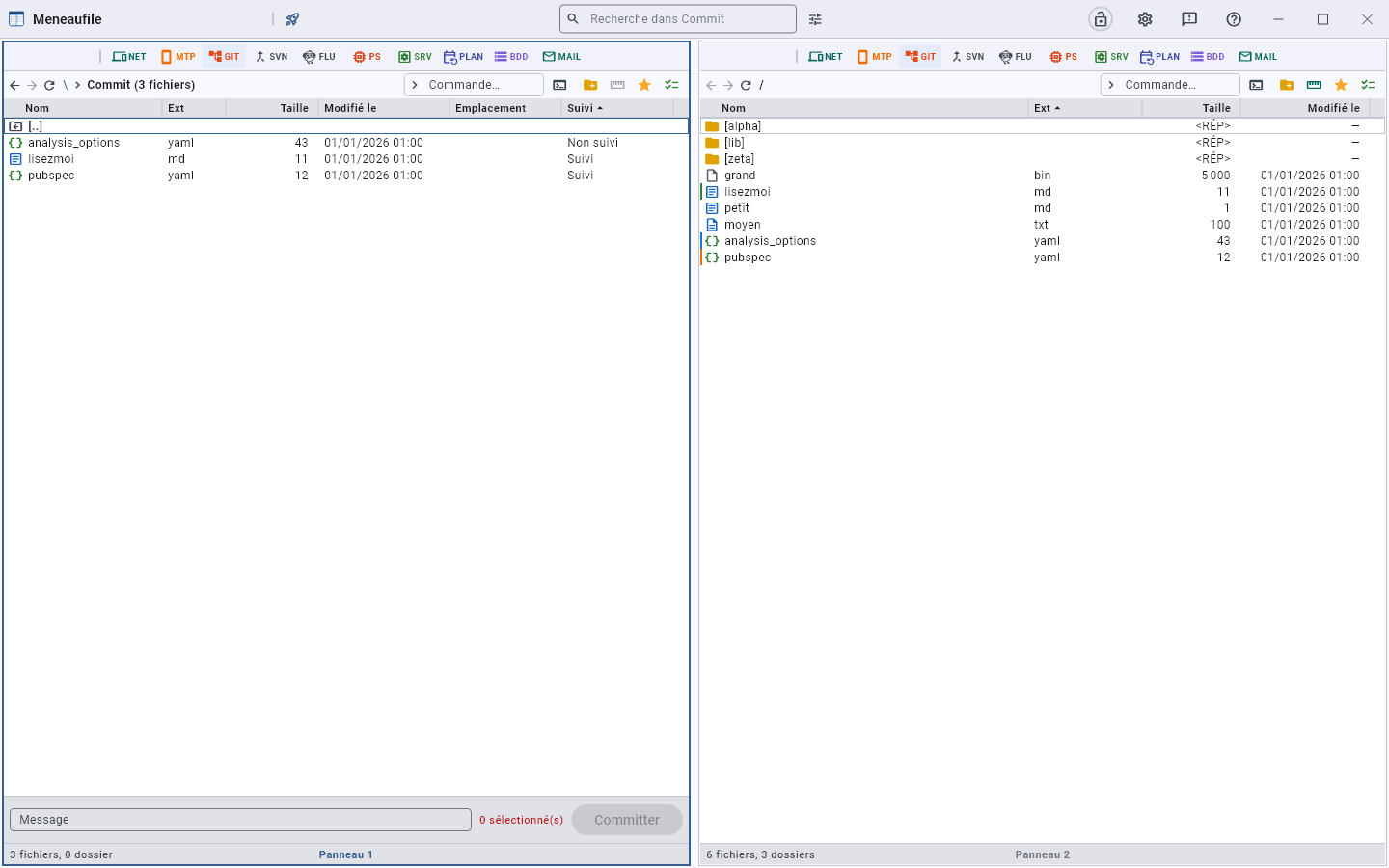
“Commit” opens the changes view: one file per row, the Tracked column saying what git knows about it. You pick rows as anywhere else — click, Ctrl+click, Shift+click —, write the message at the bottom, and Commit goes with what is selected. Nothing selected, nothing goes: the button says so.
The Untracked chip, in the commit bar, hides what git does not track: a folder full of throwaway files no longer drowns the two you want to commit, and Ctrl+A no longer takes them along. Unchecked, it says how many it hides.
See the differences
“Show differences” opens the block-by-block diff, between the working copy, the index (staged) and a commit — before and after are named there. A binary file says so rather than showing noise.
The actions
- Commit with its message.
- Ignore: the file joins the
.gitignore. - Rollback: the dialog says how many new files will leave the disk and how many will go back to their state in the repository. Uncommitted work is lost — it is written out.
- Copy › clipboard: a row in the changes list is a file on the disk, and is copied as such — to paste elsewhere, including outside Meneaufile. Neither cut nor paste: the list is recomposed by git, you do not remove a row from it and you write nothing into it.
- Open in its location: the file is elsewhere than its row — the row lives in the list, the file in the working copy, where you edit it. That is where the entry leads.
Branches and history
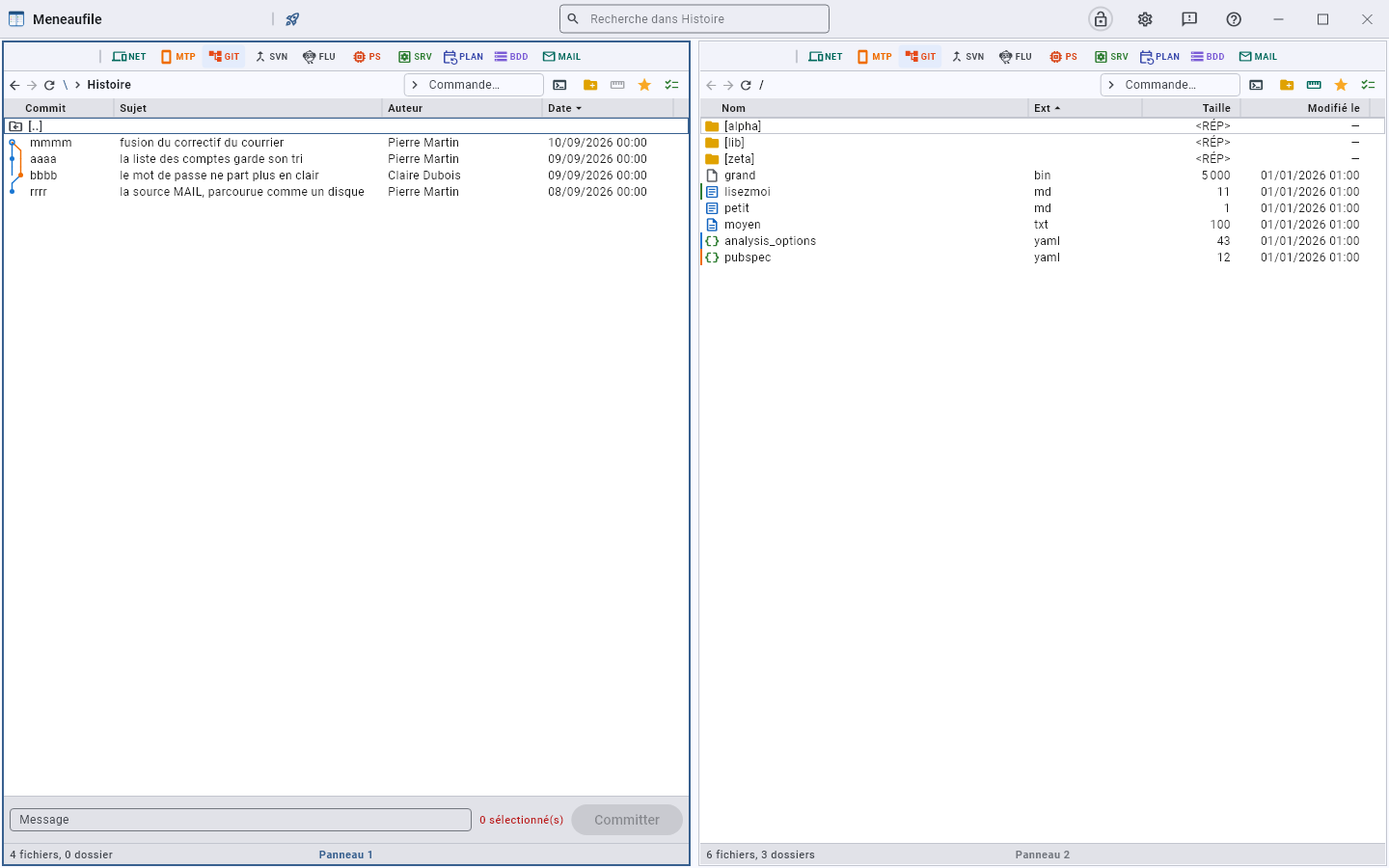
Create a branch, switch to it, merge — the entry carries the branch’s name, and answers nothing to merge: already up to date or merge stopped: some files conflict. “History…” lists the commits: their short hash, their subject, their author, their date. The left gutter draws the graph, each row on its own line, and a merge draws its stroke towards the neighbouring column. A double-click opens a commit’s detail: its full message and the files it touched.
The merge request tree
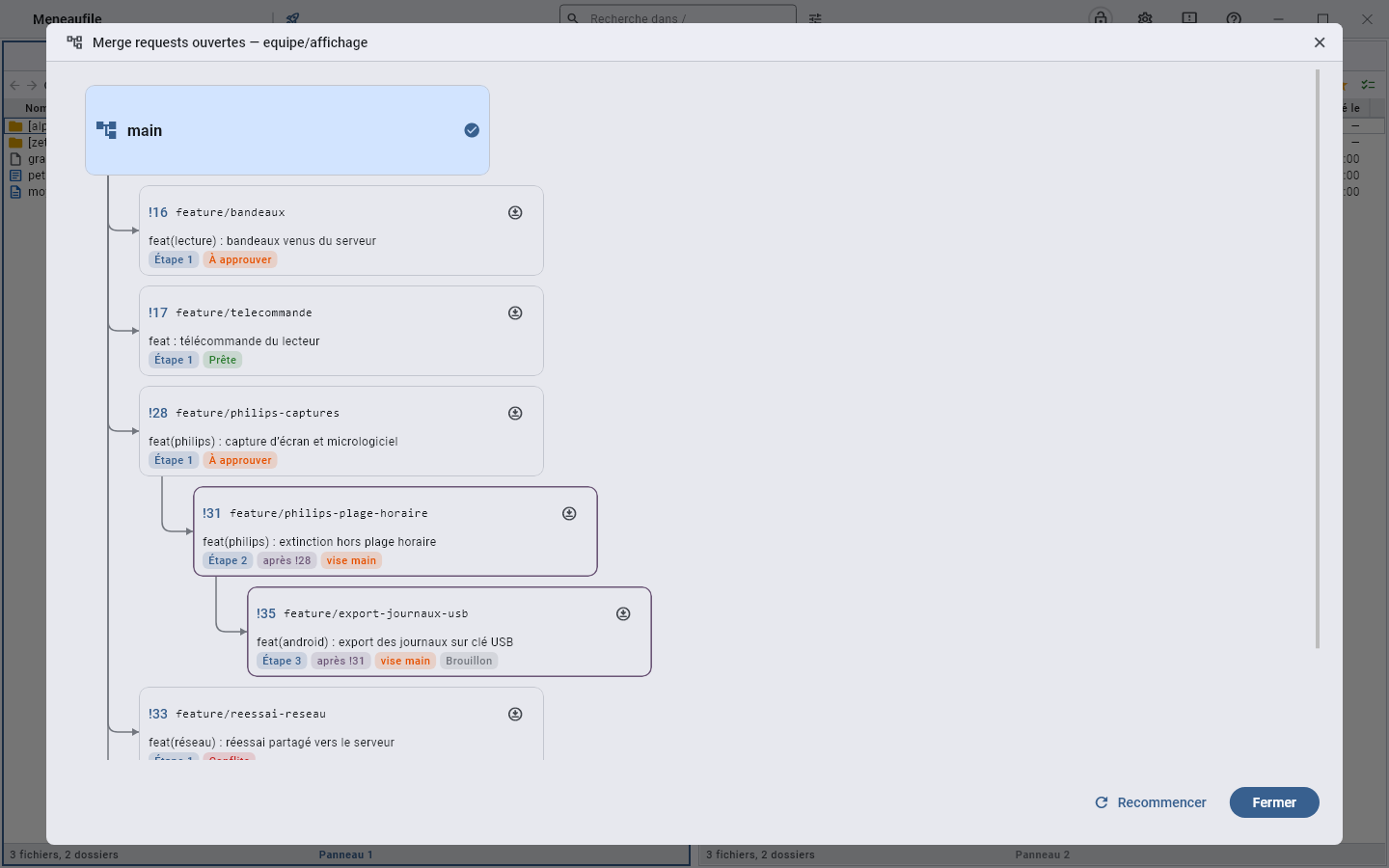
Merge request tree…, in the GIT button menu, draws the open MRs of the GitLab project the remote points to. Each one sits under the branch it starts from, indented by one step like a table of contents: the step tells the order in which to approve them, and a click on a card opens the MR in the browser.
- The origin is read from the commits. An MR branched from another sits under it, even when both target
main: “after !28” says which one to approve first, and “targets main” warns that it still targetsmain— merging it first would carry the other one’s commits along. - The badges show the state GitLab reports: draft, conflicts, needs rebase, needs approval, open discussions, pipeline running, ready.
- The Checkout button, at the top right of each card, switches the working copy to the MR’s branch, to try it or review it before approving. The branch is fetched from the server first; work in progress is offered for stashing, as for any branch switch. A check mark shows the branch you are already on.
- The personal access token, with the
read_apiscope, is created in GitLab: User settings › Access › Personal access tokens › Generate token. Meneaufile asks for it once and keeps it in the vault, in an entry of its own; a NET entry holding the account password is not taken for a token.
main, where you are.Exchange with the remote repository
“Pull” and “Push”, with the number of commits involved next to the label — zero is not written. A branch that does not exist yet on the other side goes with its upstream. Remotes are declared and removed from the same menu. When the server asks for credentials, Meneaufile asks in turn rather than staying stuck without a word.
Set aside
“Stash…” puts work in progress aside without committing it, with an optional description; “Stashes” — Stashed work — lists what is waiting, and from there you restore or discard. “Tags…” adds and removes tags the same way.
Who wrote this line
“Blame”, in a file’s menu, attributes each line to its commit and its author. It is the question you ask in front of a surprising line, and a list of commits does not answer it.
Conflicts
A conflicted file opens on its versions: the common version, ours, theirs, and the result you build. “Take all” pours in one whole side, “Resolve” saves — and the file leaves the conflicted category.
Clone
From a folder: the address (https://… or git@host:org/repo.git), the name of the folder to create, and a full or shallow history — the last N commits.
Bundles
A .bundle file is a Git repository packed into a single file: a way to carry a project on a stick, or hand it to someone, without a server. A double-click tells what it carries — its branches, its tags — and Clone here… turns it into an ordinary repository, next to it, without a network. In a repository, Create a bundle… in the GIT menu packs the whole of it into the folder of the other view.
If git is missing
Meneaufile calls the system’s git. Missing or outside the PATH, it says so rather than failing for no reason.
Meneaufile manual, in English.