 English
 বাংলা
বাংলা Čeština
 Dansk
Dansk Deutsch
 Español
 Français
 हिन्दी
 Magyar
 Bahasa Indonesia
 Italiano
 日本語
日本語 한국어
한국어 Norsk bokmål
 Nederlands
 Polski
 Português
 Română
 Русский
 Slovenčina
 Slovenščina
 Svenska
 Türkçe
 Tiếng Việt
 中文
中文NET — Network
NET Everything you connect to, in a single list: the sites where you have an account, network drives (SMB), FTP, FTPS, SFTP, WebDAV and S3 servers, the machines you control remotely — RDP, VNC, SSH, TeamViewer — and secrets that have no address.
Declaring an entry
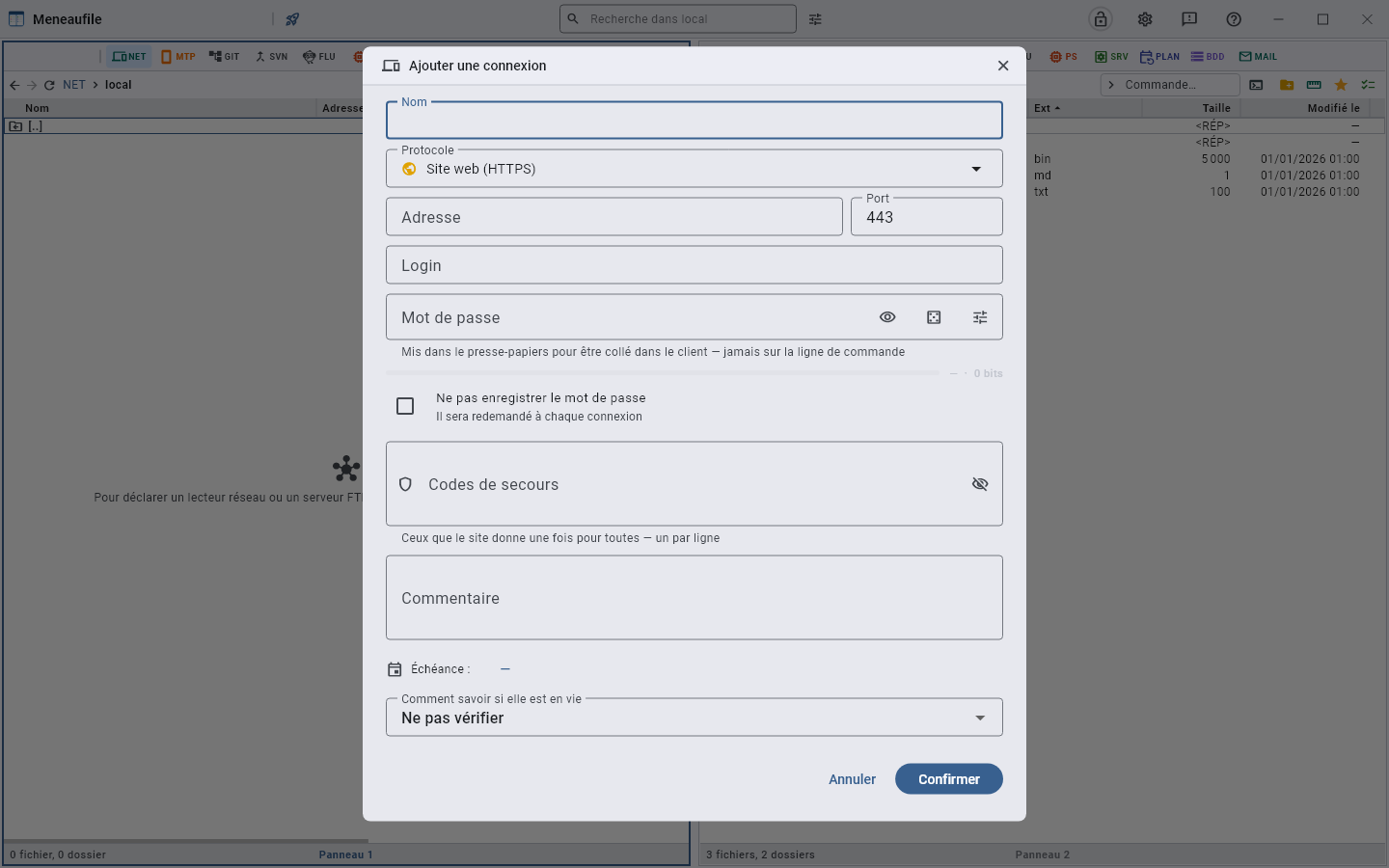
Insert opens the dialog. The type comes first, and it is what determines the fields that follow: a site wants an address, a share a path \\server\share, TeamViewer an ID, a secret nothing at all. The rest — name, account, password, comment — is common, because it is the same thing: a target and what it takes to present yourself there.
Each type carries its icon, the very one the row will show: a server for FTP, a console for SSH, a globe for a site, a key for a secret. Fourteen lines of text are read word by word; a shape is picked out at first glance. The field still shows it once closed.
| Type | What a double-click does | Note |
|---|---|---|
| Website (HTTPS) | Opens the site, the password on the clipboard | The default type |
| Website (HTTP) | The same, in the clear | The site sees the password go by on the network |
Network drive (\\server\share) | Connects to the share and enters it | Windows |
| SFTP (over SSH) | Enters the server | Port 22 by default |
| FTPS (FTP over TLS) | Enters the server | Encrypted |
| FTP (unencrypted) | Enters the server | Passive mode ticked by default; some old servers require active |
| WebDAV (HTTP / HTTPS) | Enters the server | The same transport as a site, other files at the end |
| S3 (compatible) | Enters the bucket | A region to name |
| RDP — Remote Desktop | Launches the client, the password on the clipboard | mstsc on Windows, FreeRDP or Remmina elsewhere |
| VNC | Launches the client | RealVNC, TightVNC, Remmina |
| SSH | Enters its files, over SFTP | ssh, shipped with the system |
| TeamViewer | Connects to the partner | A nine- or ten-digit ID, not an address |
| Secret (no address) | Copies the password | A card code, a note, an account with no site |
An SSH key
SSH and SFTP entries have a Private key field: the path to the key, ~/.ssh/srv_web. The field’s button opens the picker in ~/.ssh, and a path chosen under the user’s folder is written with ~ — so the entry works on another machine, under another account. The key itself stays where it is: the entries file does not carry it.
A protected key takes its passphrase from the entry’s password. A key without a passphrase needs no password; if there is one, it serves as a fallback when the server refuses the key.
The command can be pasted as it is. ssh -i ~/.ssh/srv_web [email protected], pasted into the address, fills in the entry: the host, the username, the port if there is a -p, and the key. Pasted into the list, it opens a prefilled SSH entry.
An SSH entry can be browsed. Its double-click enters the same machine over SFTP, with the same account and the same key — no second entry to maintain. On right-click, Open SSH session opens a terminal on the server; once inside, the console window next to the command field opens it in the folder you are looking at.
SFTP reads keys in OpenSSH format — ed25519, RSA, ECDSA. A PuTTY key (.ppk) must first be converted with PuTTYgen. The ~/.ssh/config file is not read: the SSH session still sees it, since it is ssh that opens, but browsing the files does not, whether it starts from an SFTP entry or an SSH entry.
The password
“Generate” draws one; a gauge shows its strength — from very weak to very strong —, and Meneaufile refuses to reuse one of the last five used. The backup codes that some sites give once and for all are kept with it, one per line.
“Copy the password” puts it on the clipboard and removes it after a few seconds — the countdown is shown in the message. The username and the address can be copied too, with the same keys on all entries: you do not relearn three shortcuts because the row is a machine rather than a site.
A checkbox says not to keep the password: it is then asked every time, and forgotten on closing. On a production server, that is sometimes what you want.
Moving around in it
An open file server is a folder: you go into it, take files out of it, drop your own into it, with F6 as everywhere. A machine, a site and a secret are leaves — there is nothing to open inside them, only something to launch on them.
“Disconnect” closes a server’s session without removing its entry from the list.
You enter an entry to search in it. A search launched from the list goes down into no connection: it would open them all, one session and one password per entry, and the wait for each of those that are switched off. It compares the entries themselves — their name, their address, their account —, which remains the way to find the right one in a long list. To dig into a server without entering it, tick its entry before searching: the ticked entries, and only they, are browsed.
Knowing whether the target answers
Each entry says how to check it. A new entry starts on Do not check: you choose the probe for the machines you want to monitor.
- Do not check — the column stays empty.
- Ping — the machine answers. The address to ping can differ from the entry’s: a TeamViewer ID cannot be pinged, you have to name its IP.
- HTTP — the service answers. A server whose application has crashed still answers a ping, and that is precisely what you want to tell apart.
The status column answers Alive, No answer or Checking…. F5 probes the whole list again; “Check now” probes only the targeted row.
Filing entries
Shift+Insert — “New folder” — creates a filing folder: by agency, by site, by client. An entry is filed by dragging it onto the folder, with Ctrl+F6 to the folder the other panel displays, or with Ctrl+X then Ctrl+V. The password follows: it is stored under the entry’s identity, which does not change.
F6 copies an entry: a second entry, with its own identity and its own password, which you edit without touching the first. Removing a filing folder does not remove what it held — the entries go back up to the root.
Nothing goes out to a file folder: an entry has no bytes, and copying it there would write a password in clear text. The files of an open server, on the other hand, come out like any others — that is the whole point.
The list, and sharing it
It is a sealed file: local.meneaunet, and the ones you have linked to share a team’s list. The master password encrypts it and is asked again at every opening; a setting says how long it stays open — until closing, or a few minutes.
Entries, folders and secrets are inside: passwords, backup codes, old passwords. That is what lets a USB stick carry a list that opens — the system keychain, for its part, never leaves its machine. Removing an entry takes its secrets with it, and touches nothing at the other end of the network.
The log
“Remote server log” keeps the dialogue with the servers: that is where you go when a connection refuses without saying why. It can be copied with a button.
Meneaufile manual, in English.