 English
 বাংলা
বাংলা Čeština
 Dansk
Dansk Deutsch
 Español
 Français
 हिन्दी
 Magyar
 Bahasa Indonesia
 Italiano
 日本語
日本語 한국어
한국어 Norsk bokmål
 Nederlands
 Polski
 Português
 Română
 Русский
 Slovenčina
 Slovenščina
 Svenska
 Türkçe
 Tiếng Việt
 中文
中文The button bar
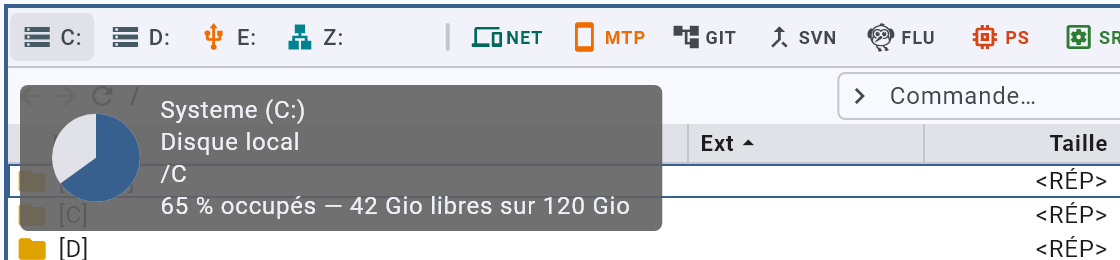
Above each list, three groups of buttons, from left to right: the drives, the modules, the quick access.
The drives
Their button carries a pie chart of what is used; hovering gives the figures, and reads them again at that moment. Right-click leads to the root, to the last folder visited on that drive, to the other panel — and carries “Properties”, the system’s own.
A drive that no longer answers turns red: that is a state to fix, not a kind of drive.
The modules
One button per source, with its abbreviation and its tint. See The modules.
Quick access
The personal folders — desktop, documents, pictures, downloads — and the favourites you have made. Each keeps its tint, the same as in the list.
The handles
Between the groups, handles: drag them to reveal buttons one by one, push them to fold buttons behind their icon. What is folded stays reachable — the group’s icon opens a drawer that lists them, with “Edit…” at the end to set the order and what is shown.
The title bar
- The rocket carries the launch shortcuts: the first ones have their button, the following ones wait behind it. Ctrl+1 to Ctrl+9 launch them. Drop a program on it to add one.
- The search field — see Search.
- The queue is only there when a task is running or waiting: a progress ring, the number of tasks in a badge, and the task list on click — see The queue.
- The padlock says whether the password vault is open, and changes it with a click — closed, it asks for the password; open, it locks again. Its ring fills up towards automatic locking, and hovering tells you the time left.
- The gear opens the settings.
- The speech bubble opens your mail client on a message of feedback to us, with the version and platform already written in.
- The question mark shows the shortcuts on hover, and opens this manual on click.

Meneaufile manual, in English.