 English
 বাংলা
বাংলা Čeština
 Dansk
Dansk Deutsch
 Español
 Français
 हिन्दी
 Magyar
 Bahasa Indonesia
 Italiano
 日本語
日本語 한국어
한국어 Norsk bokmål
 Nederlands
 Polski
 Português
 Română
 Русский
 Slovenčina
 Slovenščina
 Svenska
 Türkçe
 Tiếng Việt
 中文
中文Panels
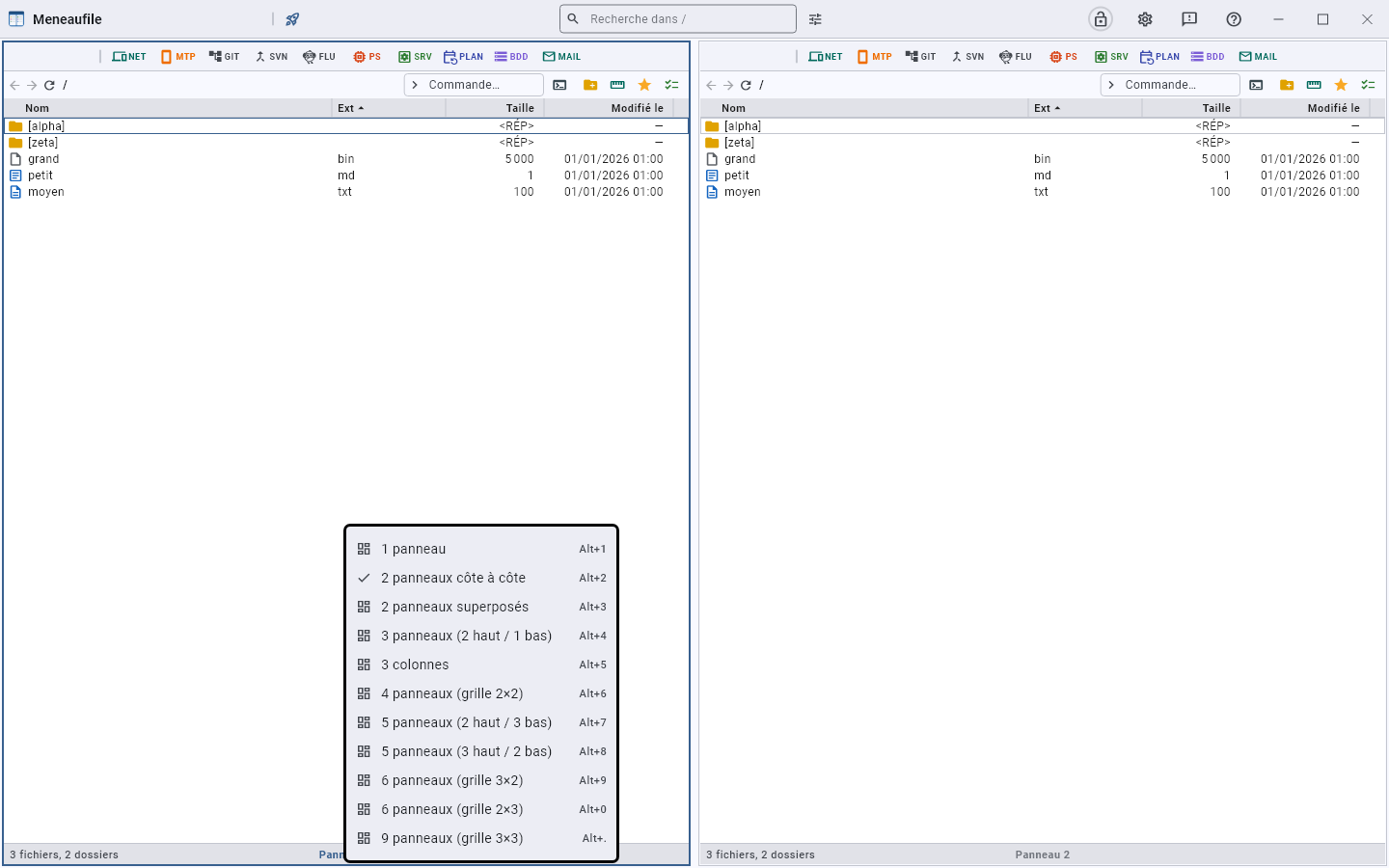
Eleven layouts, from one to nine panels: a single view, two side by side or one above the other, three, four, five, six, nine.
The layouts
Their keys follow the order of the list — Alt+1 to Alt+9, then Alt+0 and Alt+. — and not the number of panels: the fourth layout has three.
Each panel carries its number at the bottom of its list: that is where you think of the layout, and a right-click on it shows them all, with their key.
Between two panels, the mullion: the thin bar that separates them, like the one dividing a window — and the one Meneaufile is named after. Drag it to set their widths; each layout remembers its own, and right-clicking a mullion restores equal shares.
Tab moves to the next panel. The ACTIVE panel carries a thin outline: it is the one the keys target, and the one that serves as the source for a copy. Ctrl+U swaps the folders of two panels.
Moving around
- Enter or a double-click enters a folder, opens a file; the bold in the context menu always says what a double-click will do.
- Backspace goes up one level; Alt+← and Alt+→ retrace the path taken.
- The breadcrumb, at the top, leads to any level with a click — and its right-click opens the same menu as the list.
- Typing letters jumps to the first row that starts with them.
- Right-clicking one of the two arrows opens the visited folders — the panel’s own, not those next door. That list survives closing the app, whereas the arrows themselves start from zero at every launch: it is on reopening that you look for where you were working. The greyed-out arrows still respond.
- F5 rereads the folder. On a list of machines, it probes again: what you come to look for is who answers NOW.
Each panel remembers the last folder visited PER DRIVE: clicking a disk’s button returns straight there, and its root stays one right-click away.
The console
To the right of the command field, the console window opens a terminal in the panel’s folder. In an SFTP server — or an SSH entry being browsed — it opens an SSH session on the server, placed in the folder you are looking at.
Its right-click shows the terminals installed on the computer: cmd, PowerShell, Windows Terminal, Git Bash or WSL on Windows, those of the desktop environment on Linux. The one you choose opens at once, and it is the one the click will open from then on.
What the bottom of the list says
The row count while nothing is chosen, the size of the selection as soon as there is one, and the free space of the displayed volume. During a search or a measurement, that is where the traversal says how far it has got.
Meneaufile manual, in English.